
4K
Resolution
40
Touch Points
Android
16 With Optional Windows OS
Size
55-110″
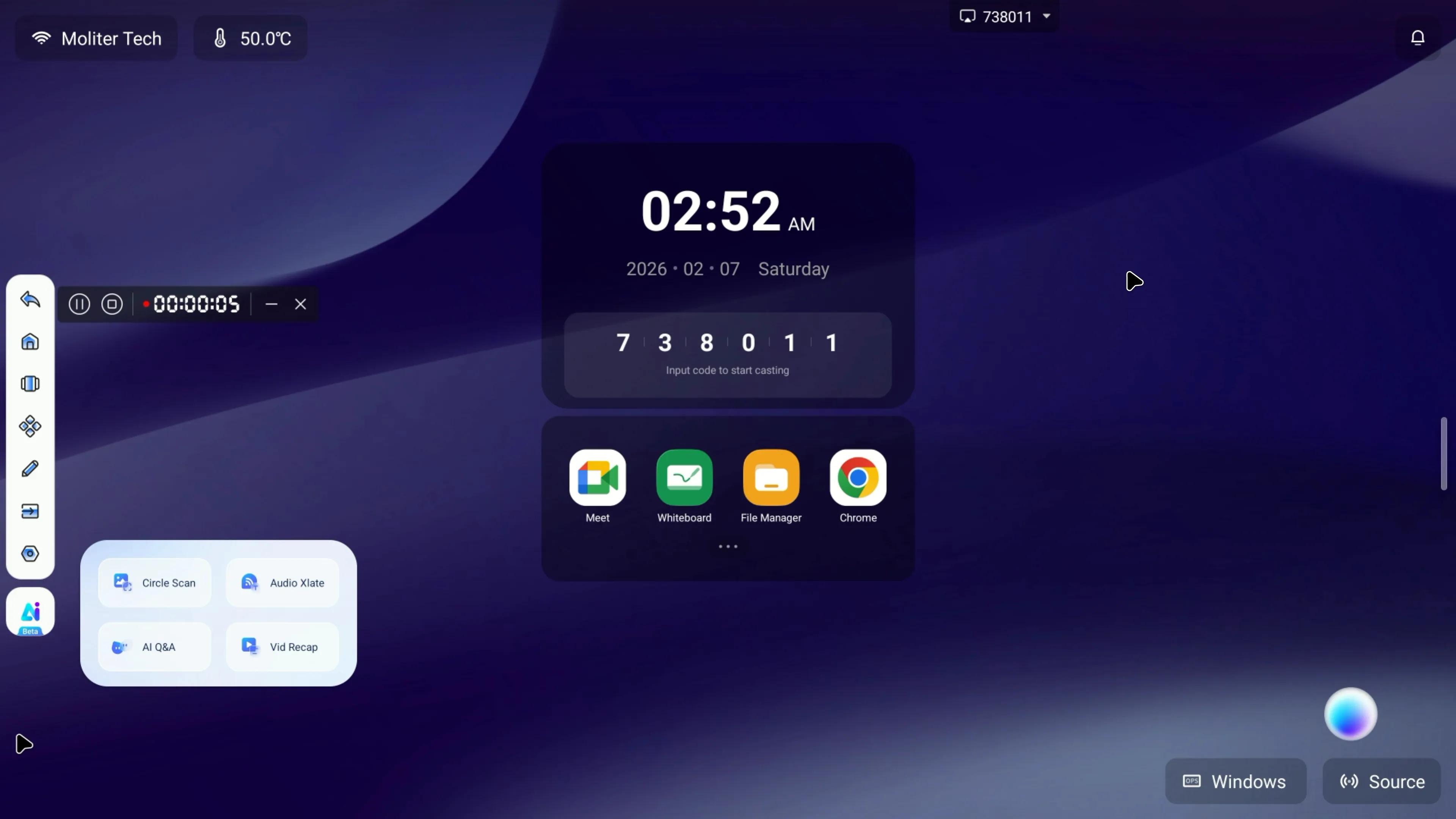
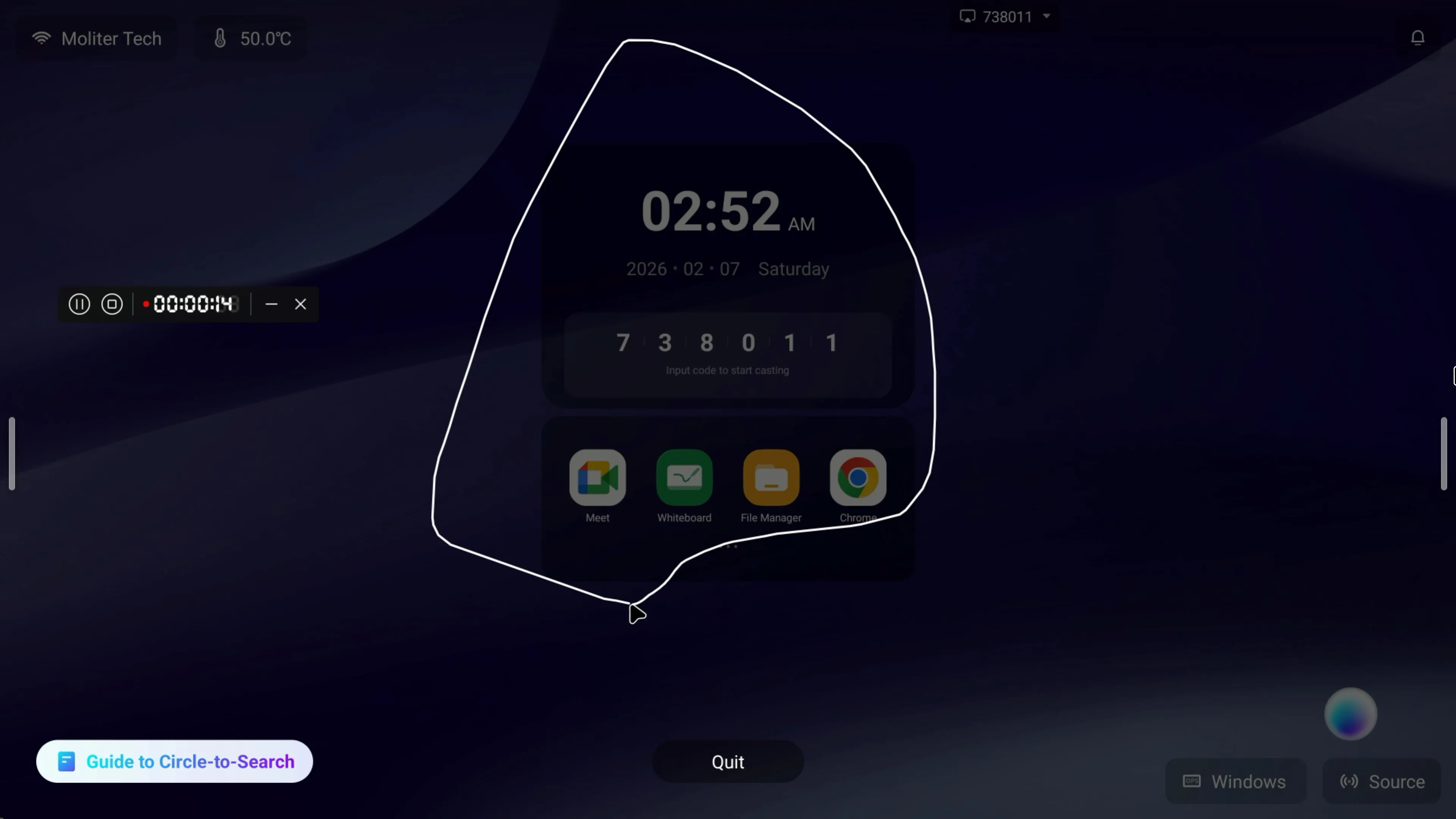
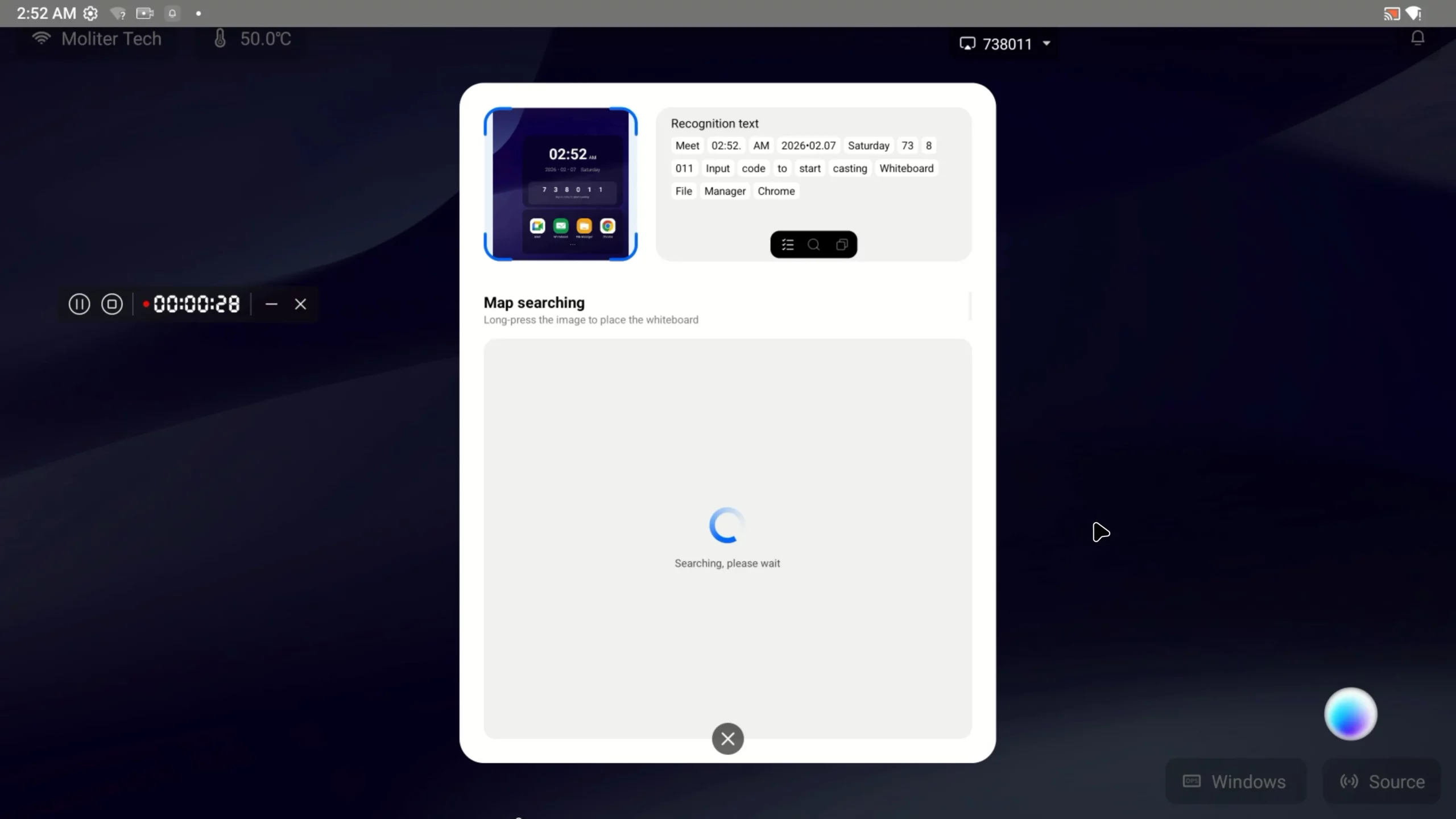
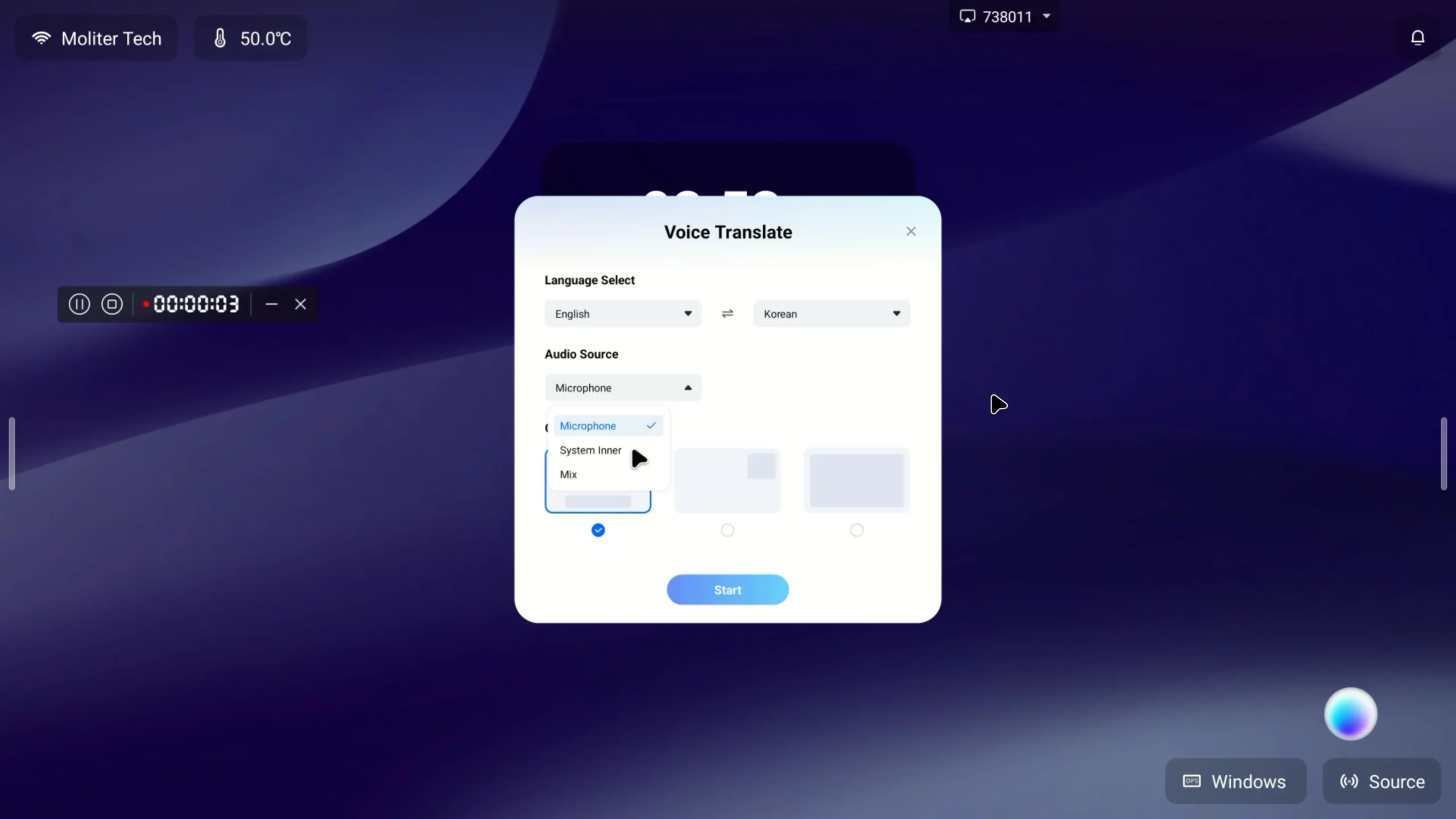
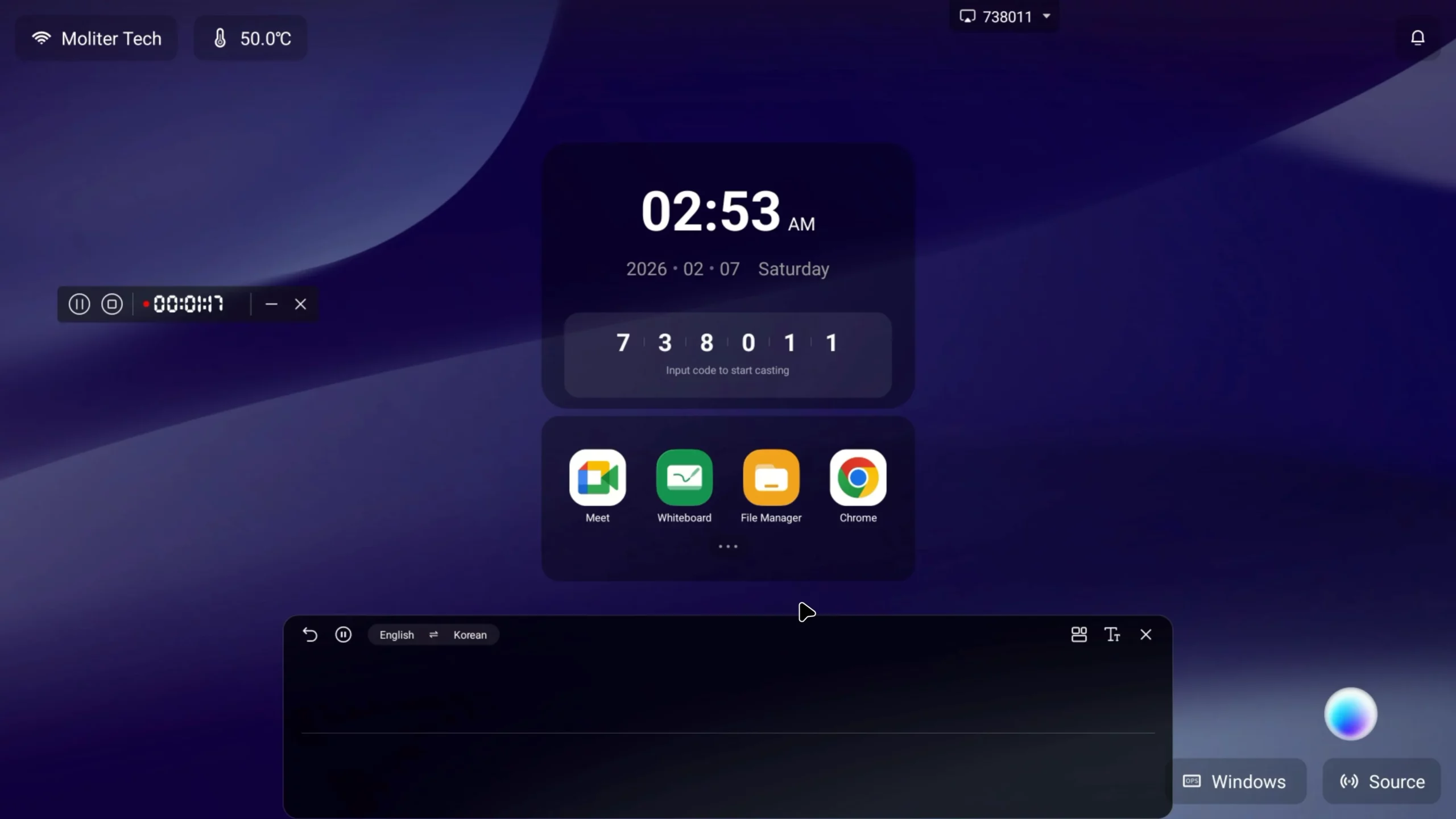
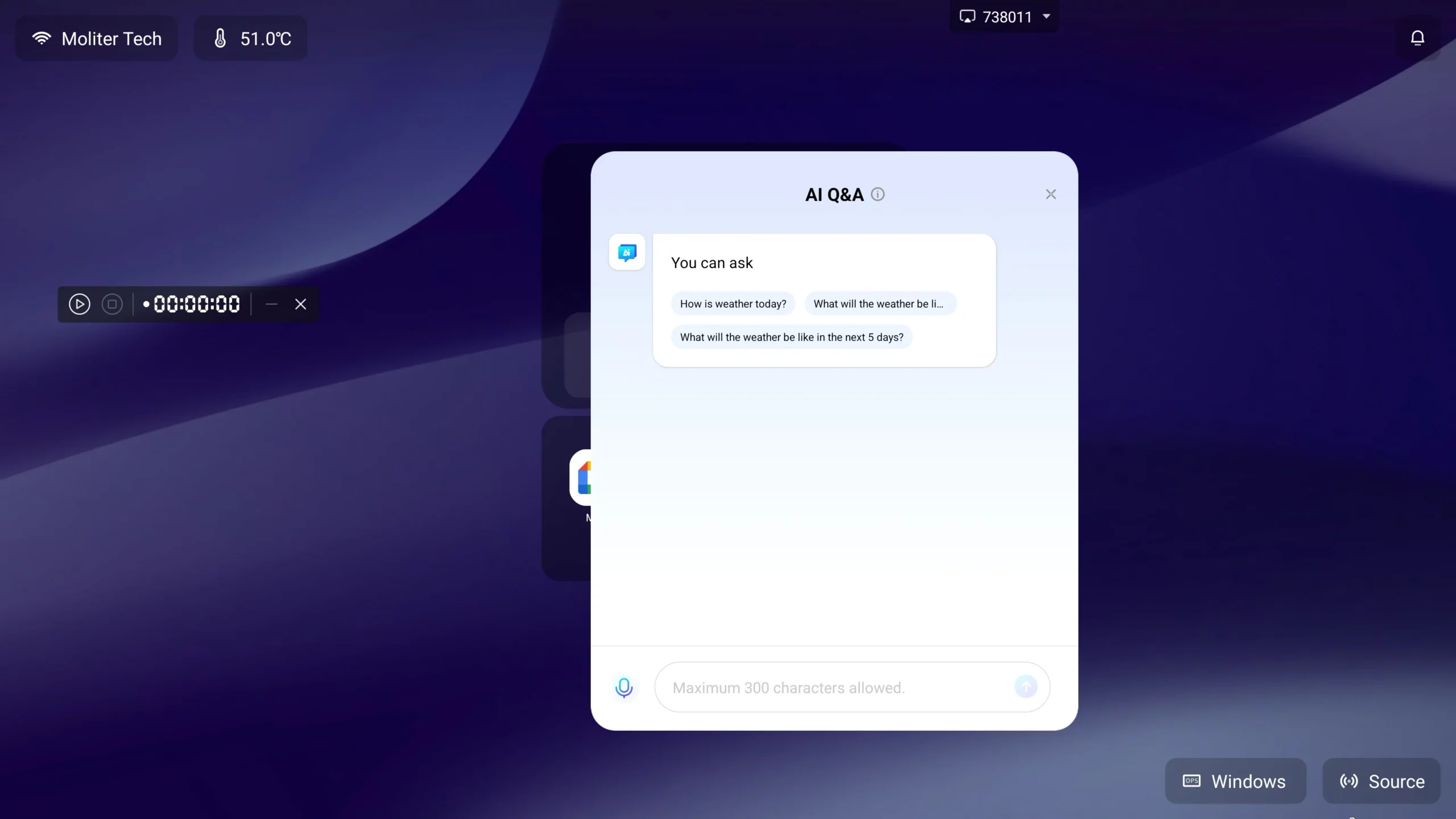
AI-Driven MeetBoard
AI Video Recap
Help teams capture key points from long videos with automatic captions and summaries, reducing the time needed for review.
AI Circle & Scan
Keep discussions moving by searching selected words, images, or charts directly on screen instead of switching devices.
AI Voice Translation
Make multilingual meetings easier to follow with real-time translated text for international teams and customers.
AI Question & Answer
Support faster decisions by providing instant answers when questions arise during meetings or presentations.
Flexible Settings for Every Meeting
Ready for Every Meeting
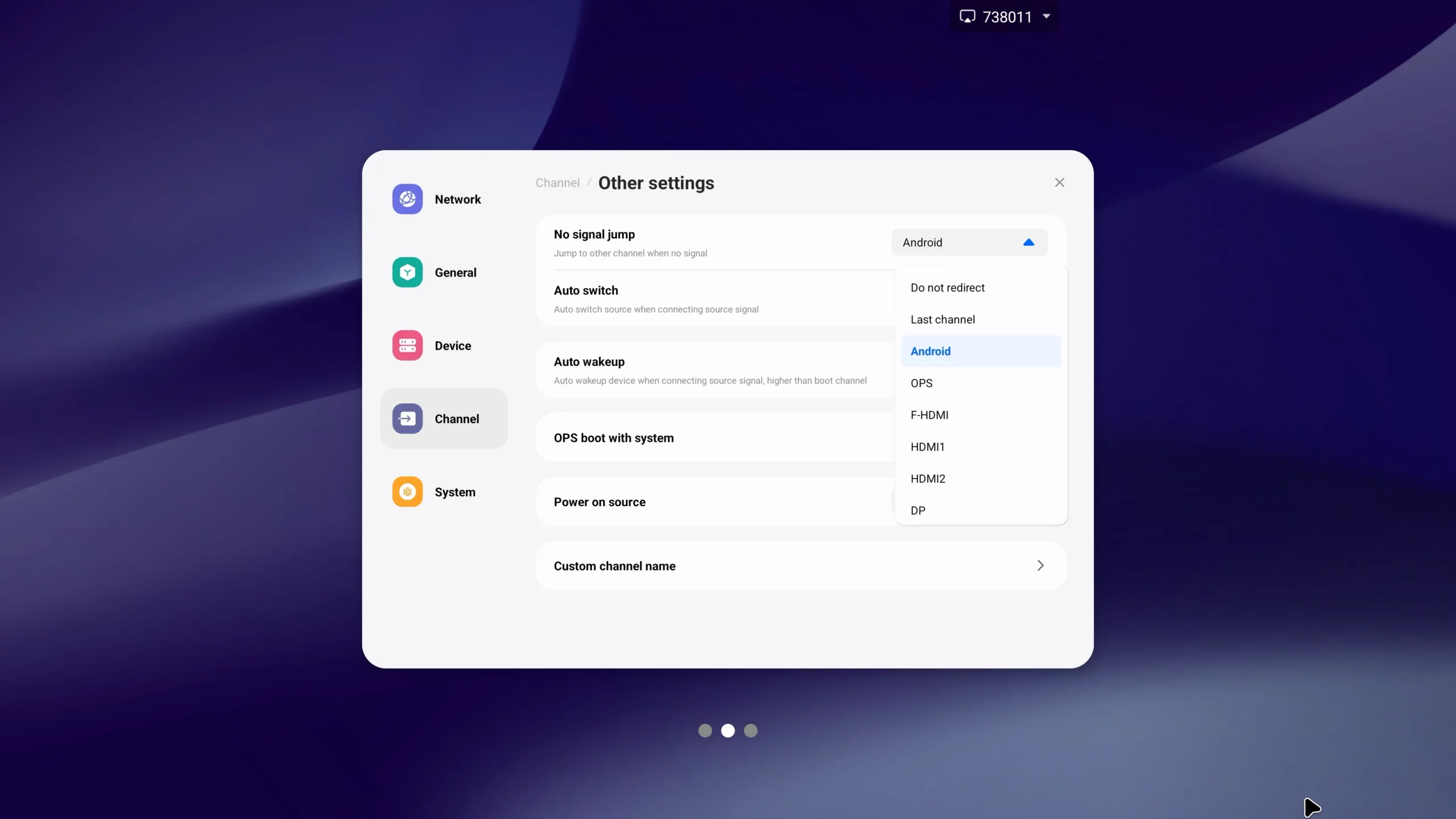
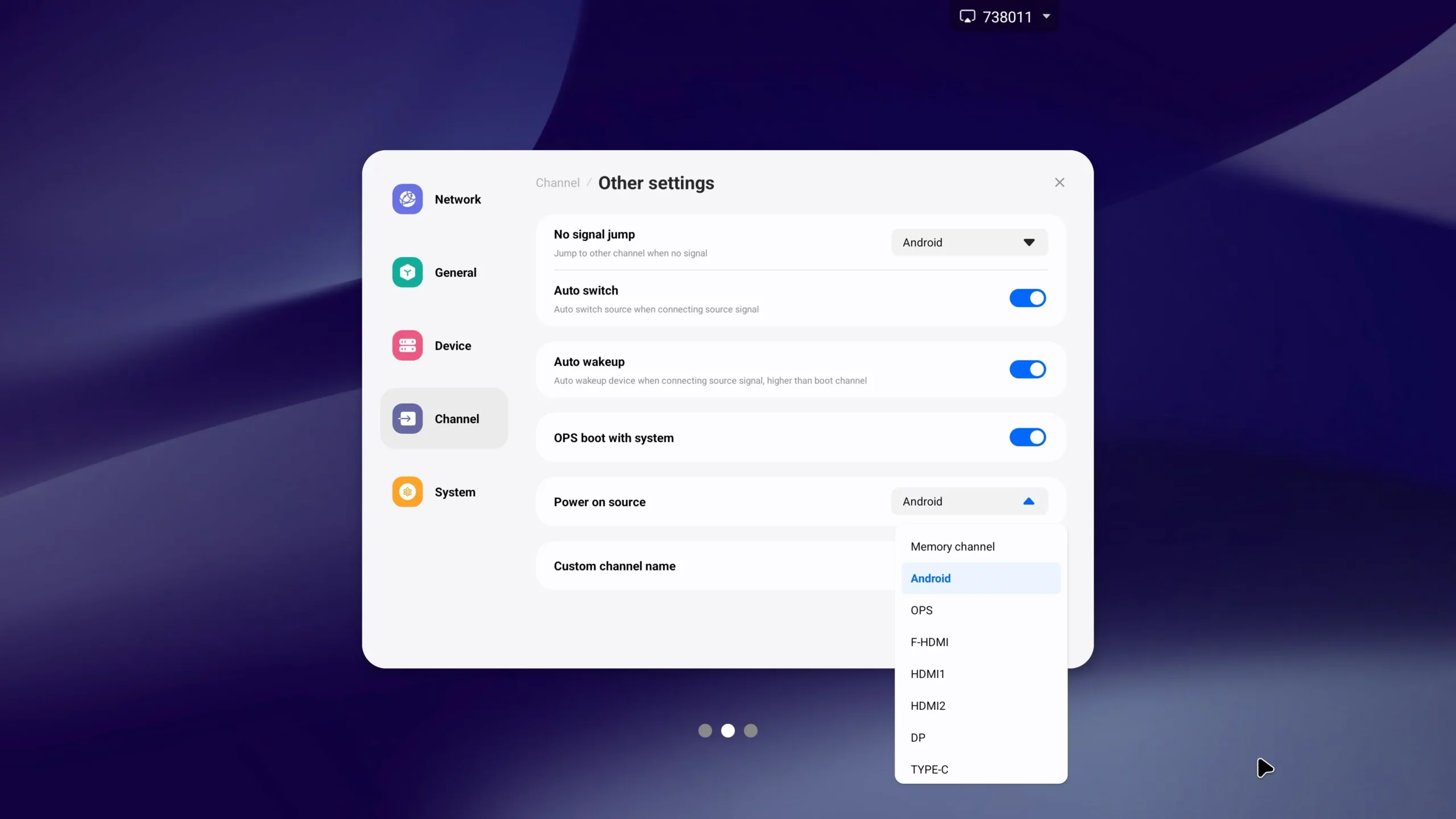
Start on the preferred source and switch automatically when a connected device becomes unavailable, reducing setup delays.
Clear Source Names
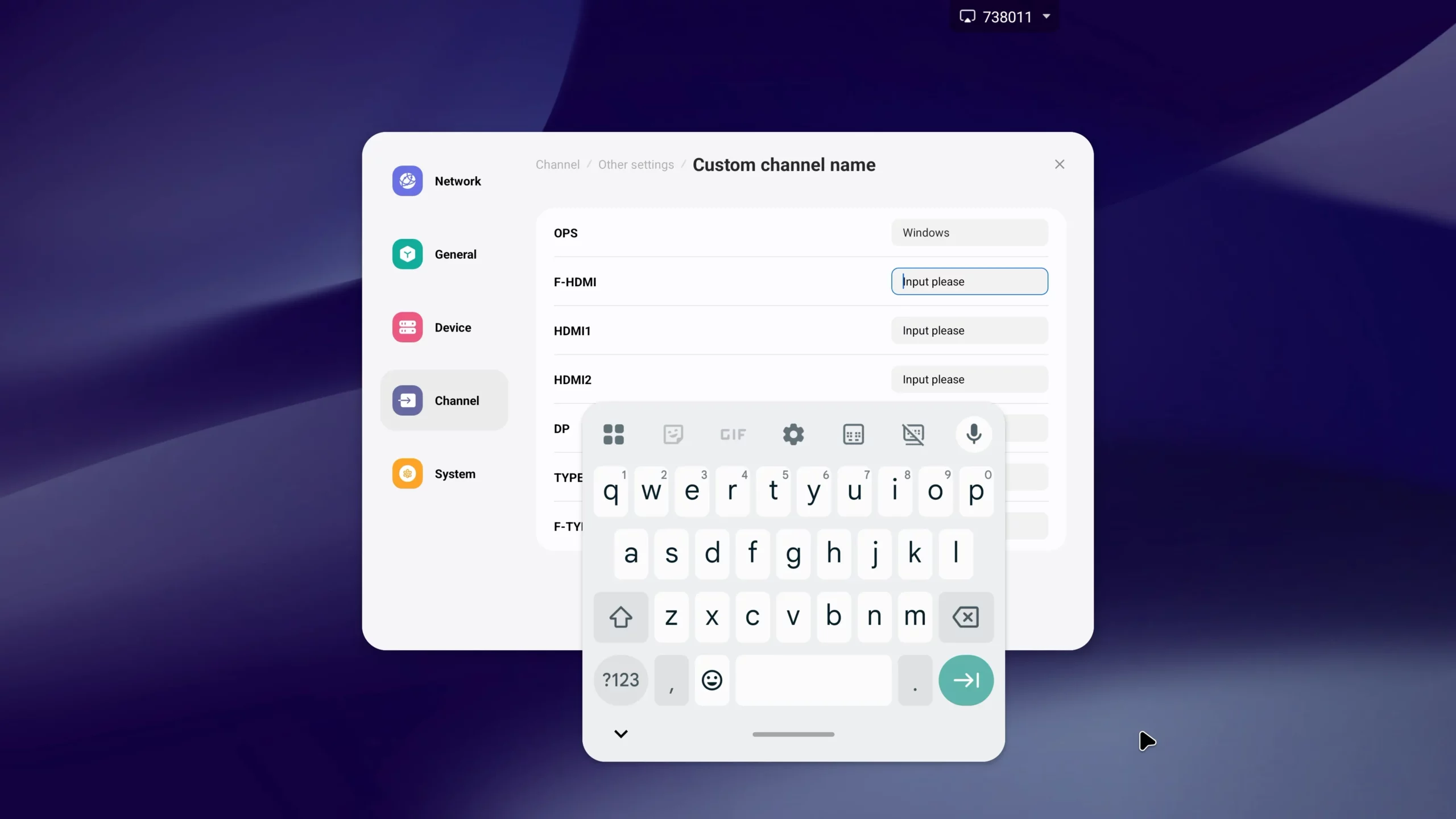
Rename inputs as “Windows,” “Phone,” or other familiar labels, so any user can connect without confusion.
Pen Actions Your Way
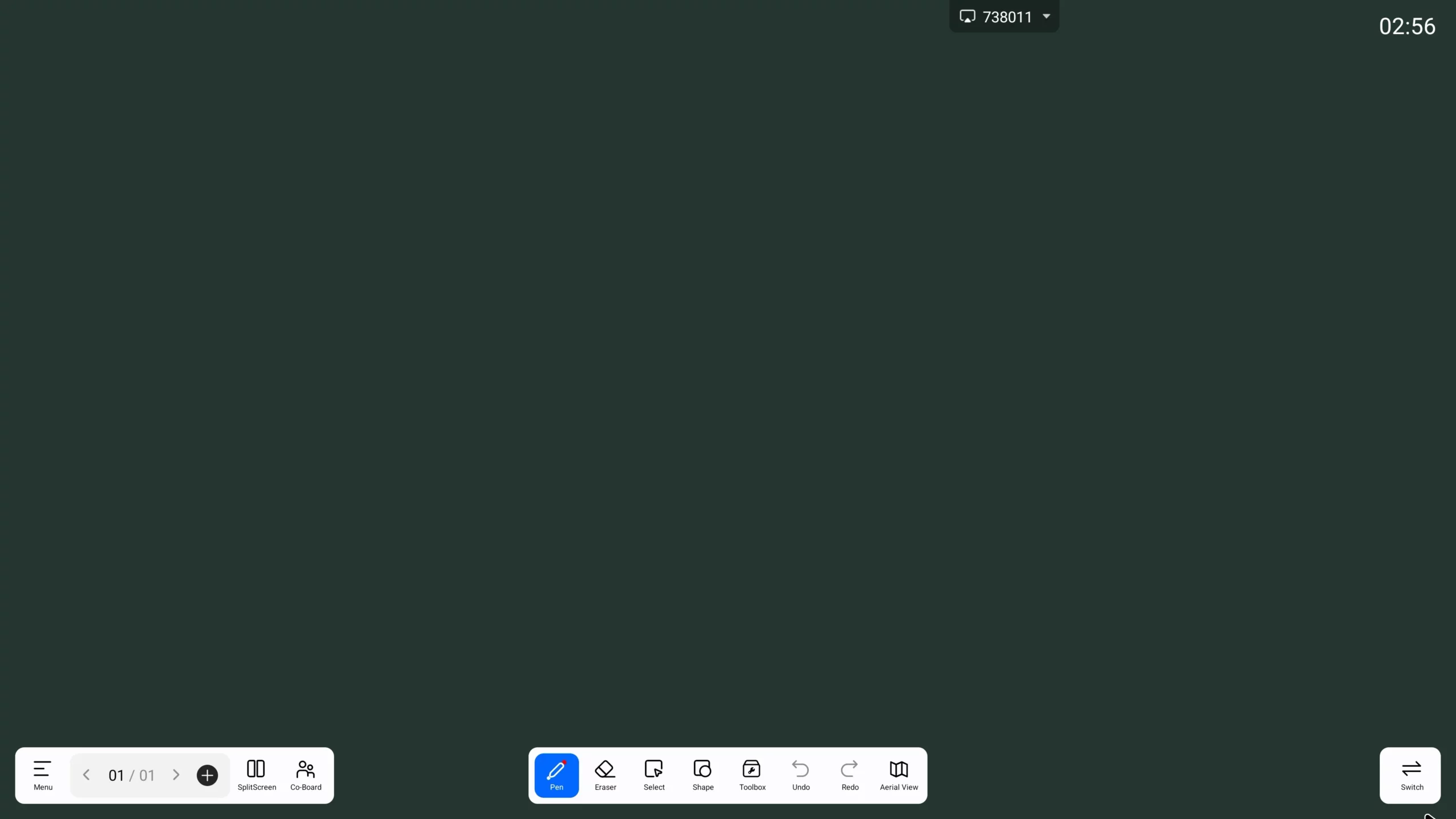
Set the pen to open a whiteboard, start annotation, or stay inactive to match different meeting workflows.
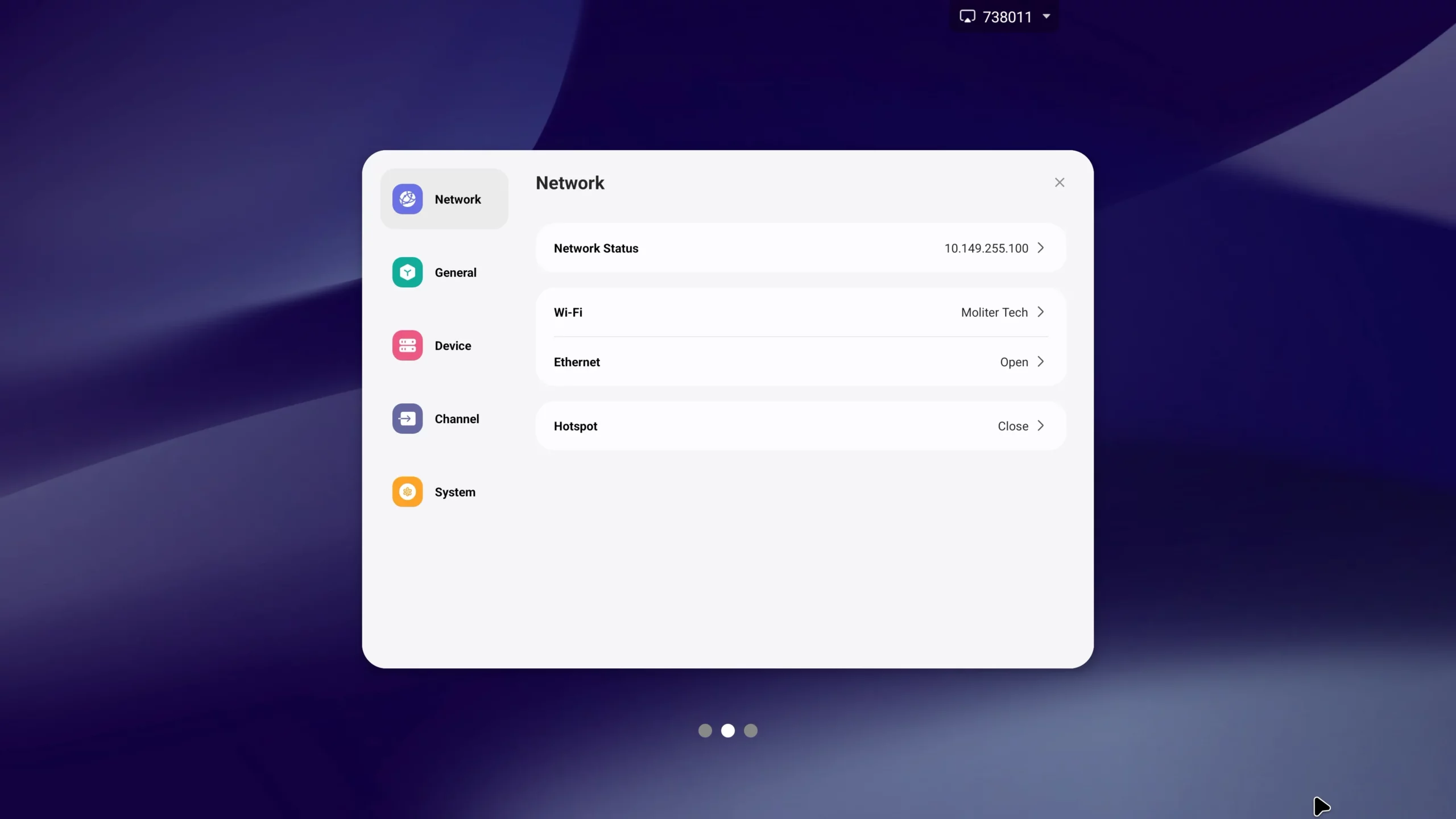
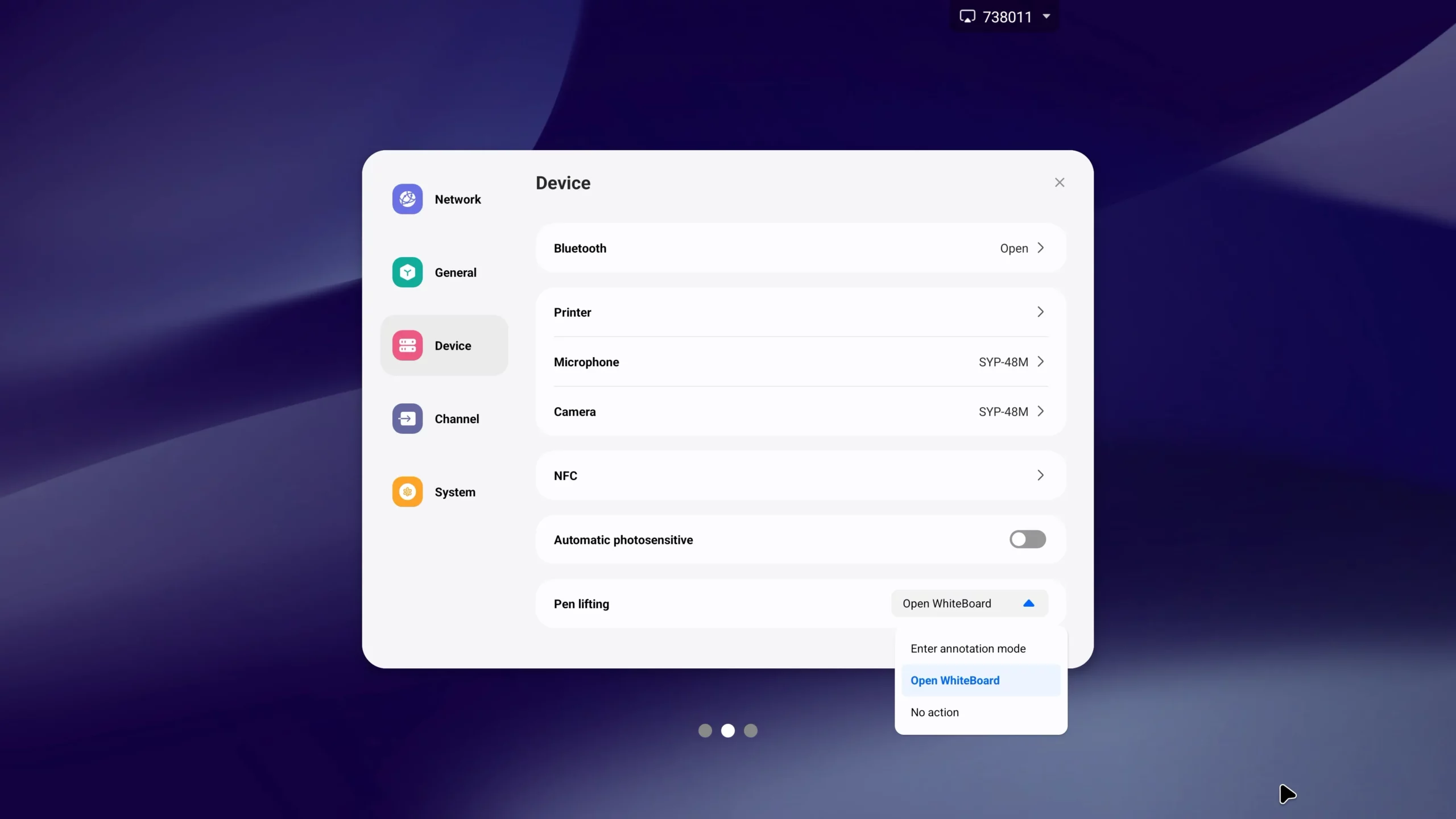
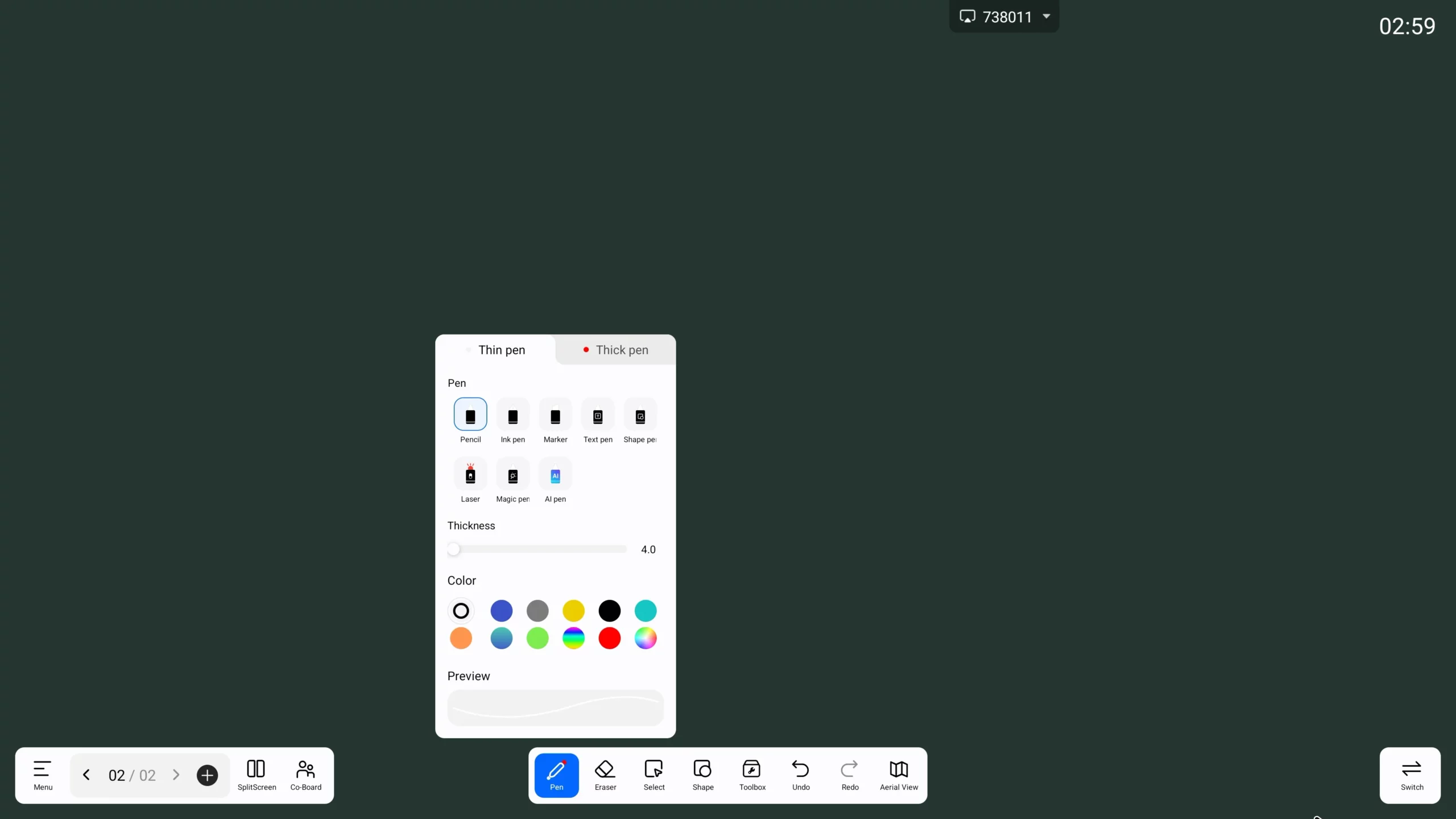
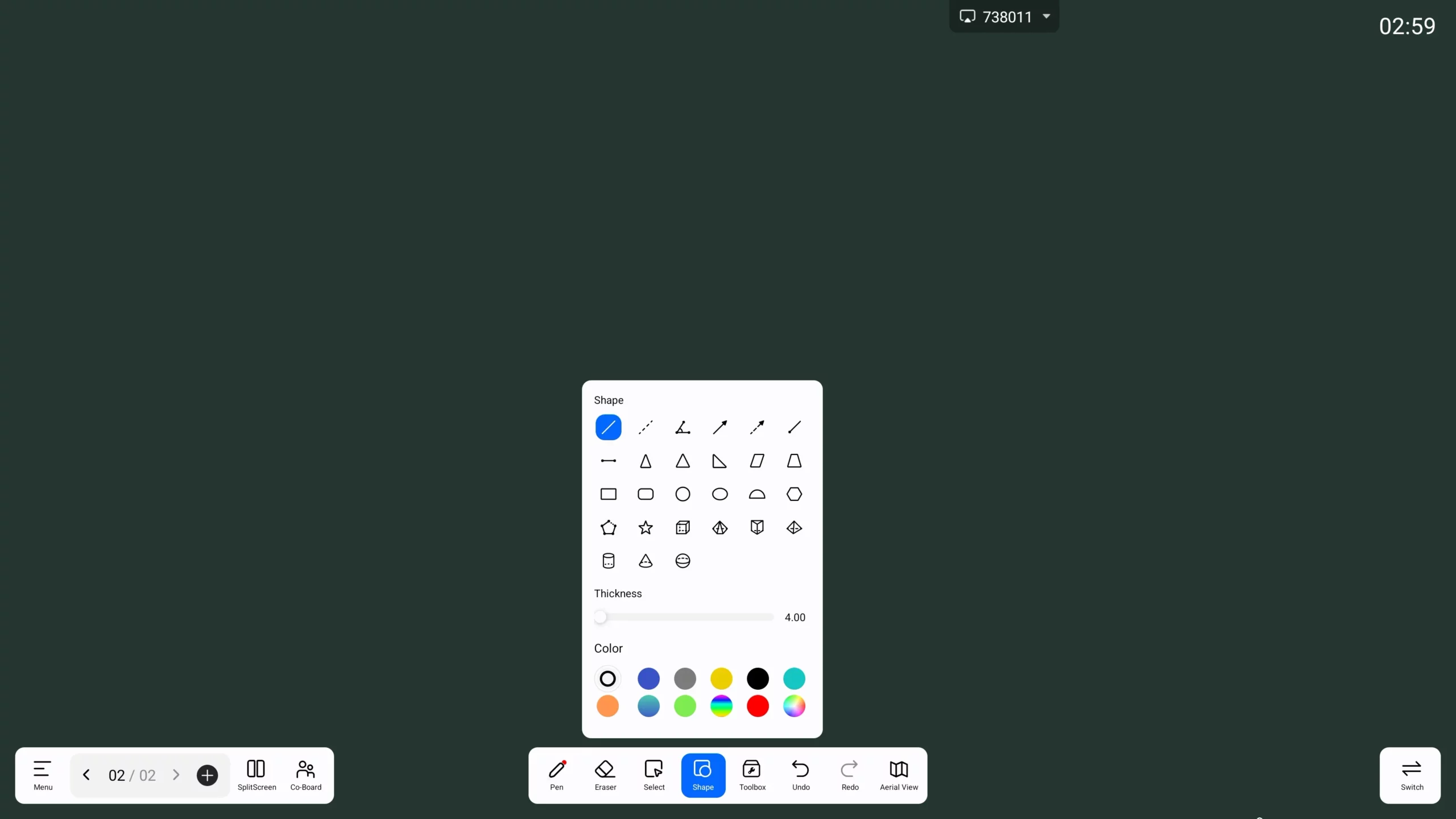
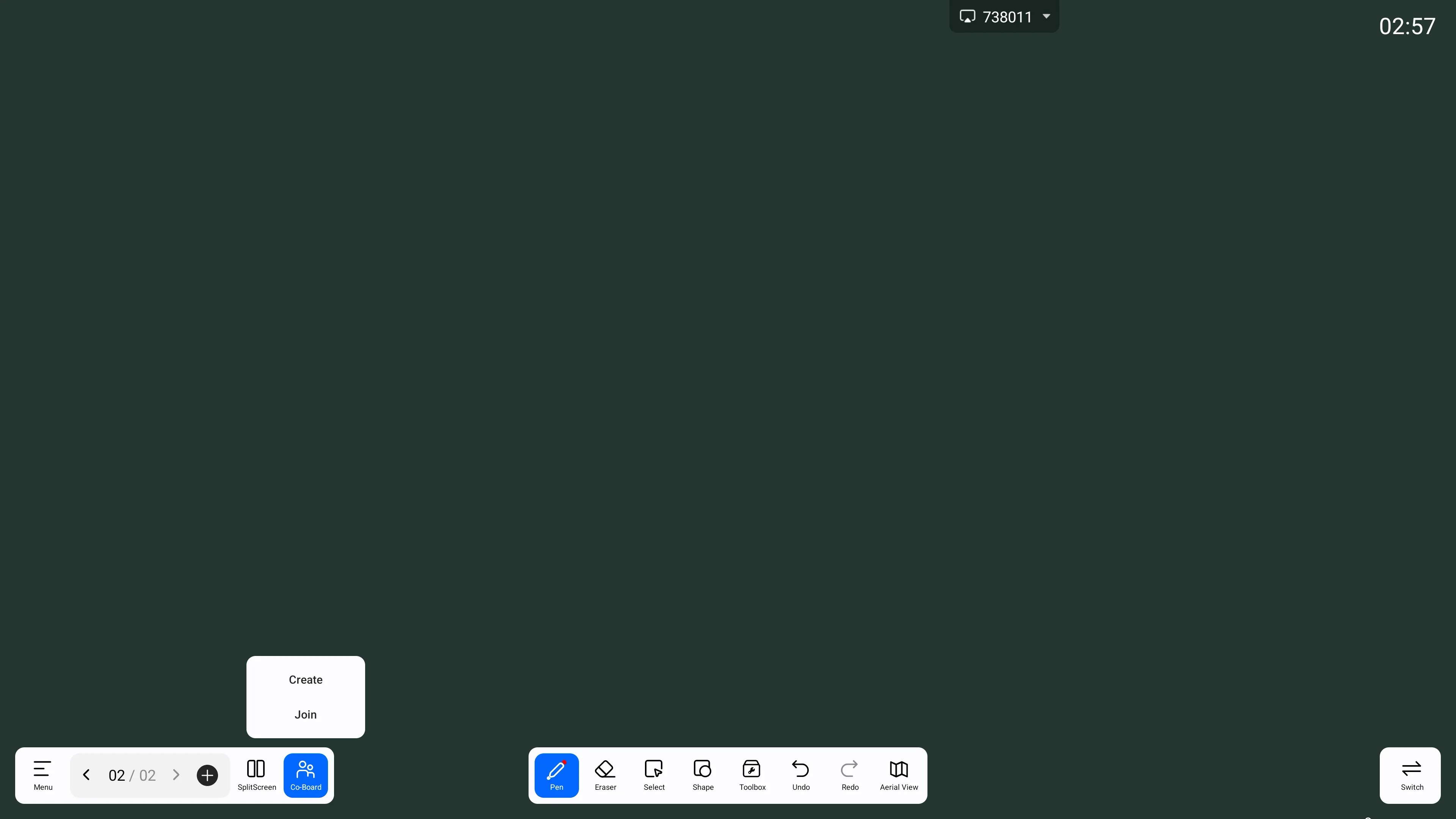
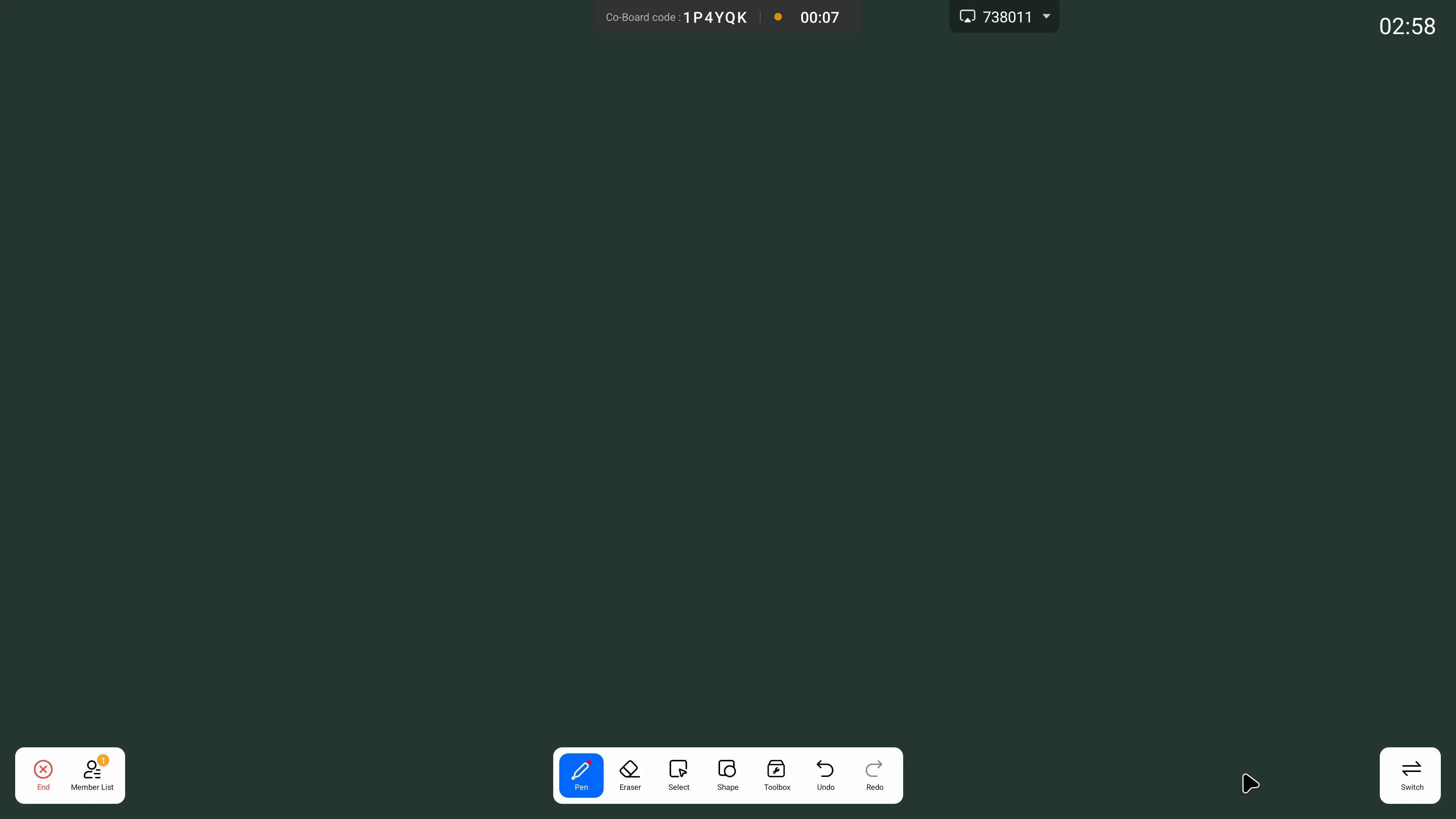
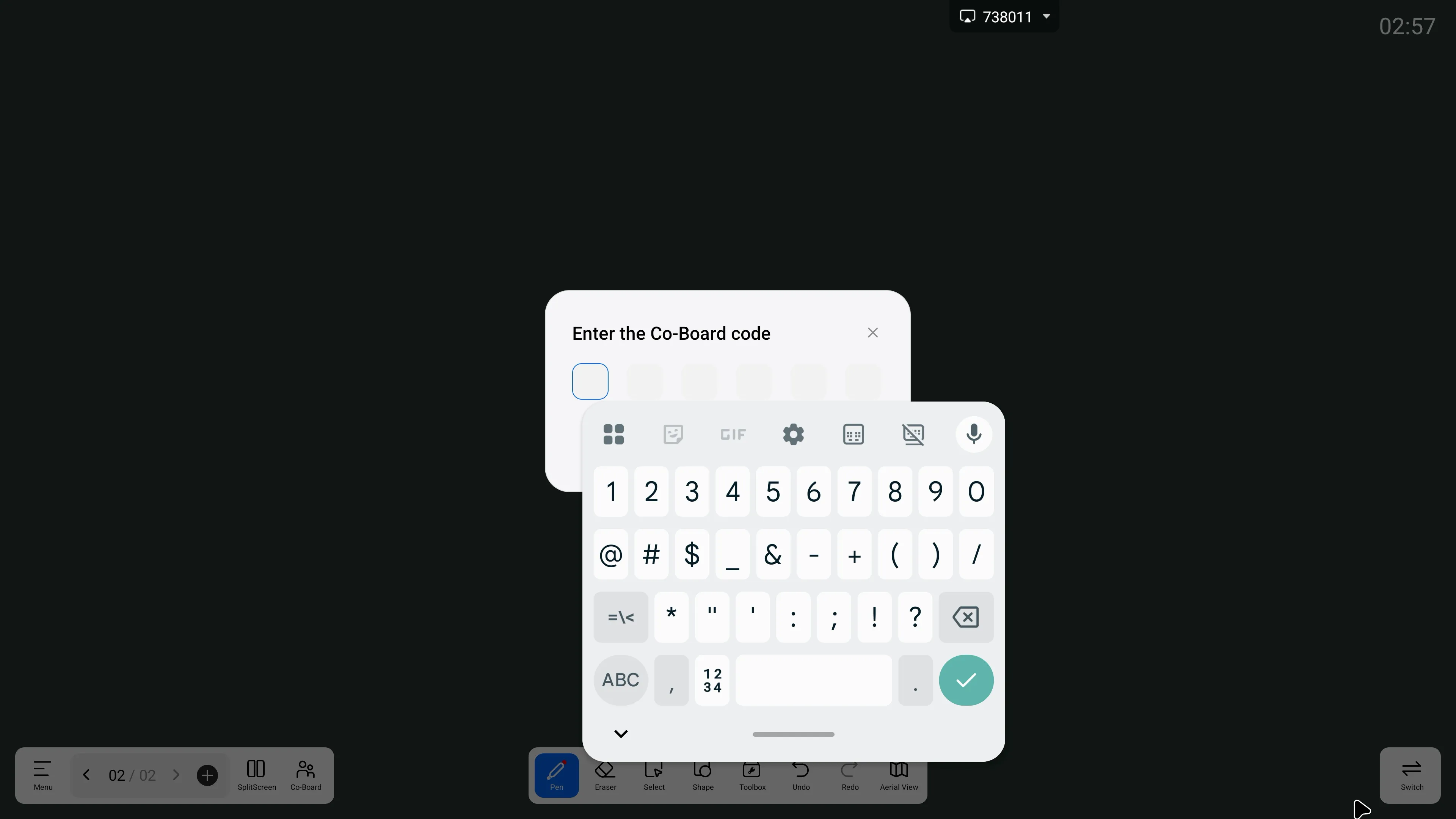
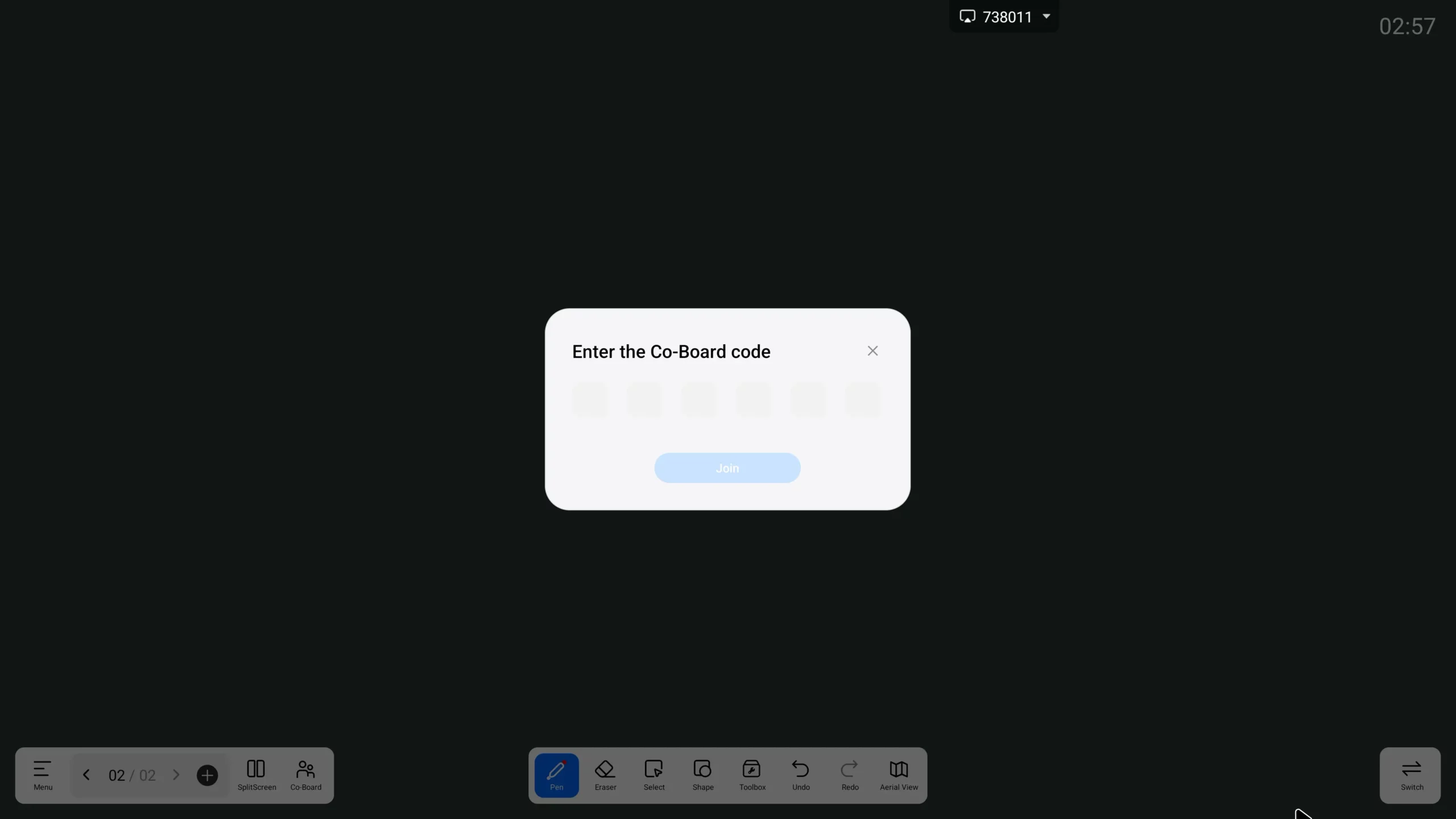
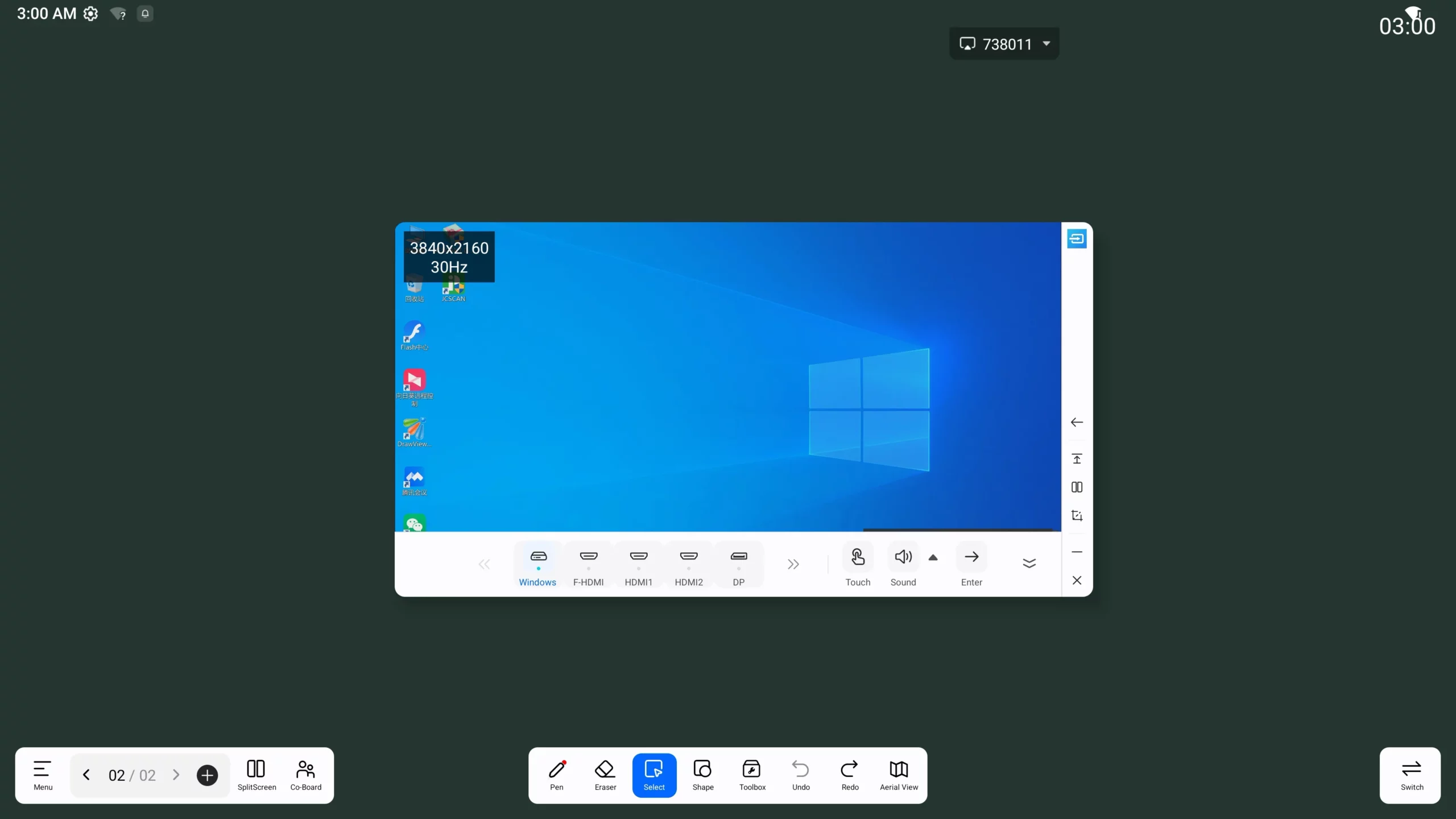
Collaborative Whiteboarding for Better Meetings
Co-Board Collaboration
Keep teams in different offices aligned by letting everyone write, brainstorm, and review ideas on one shared whiteboard.
Interactive Meeting Tools
Turn ideas into clearer discussions with pens, shapes, split-screen tools, quizzes, and live voting.
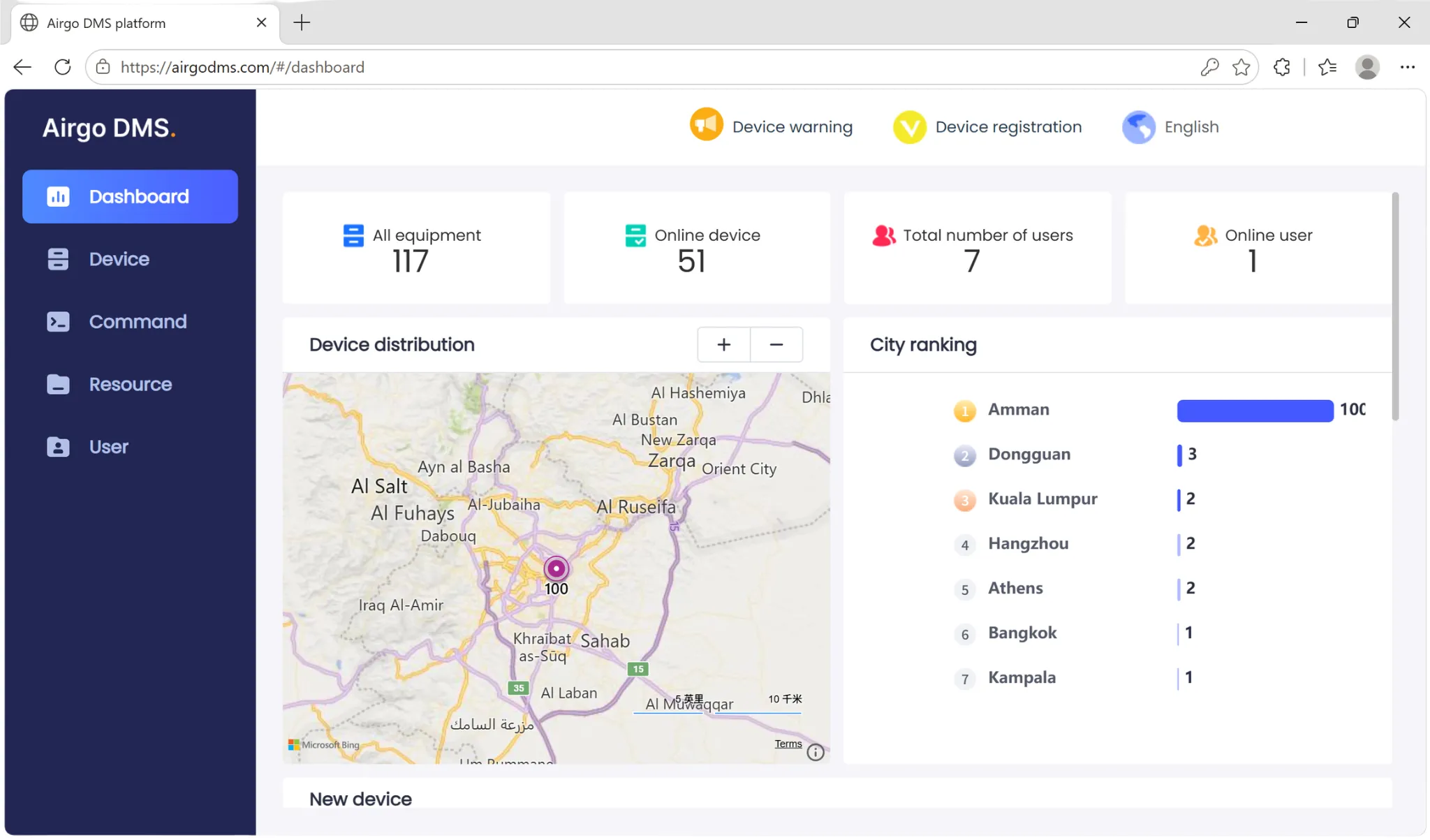
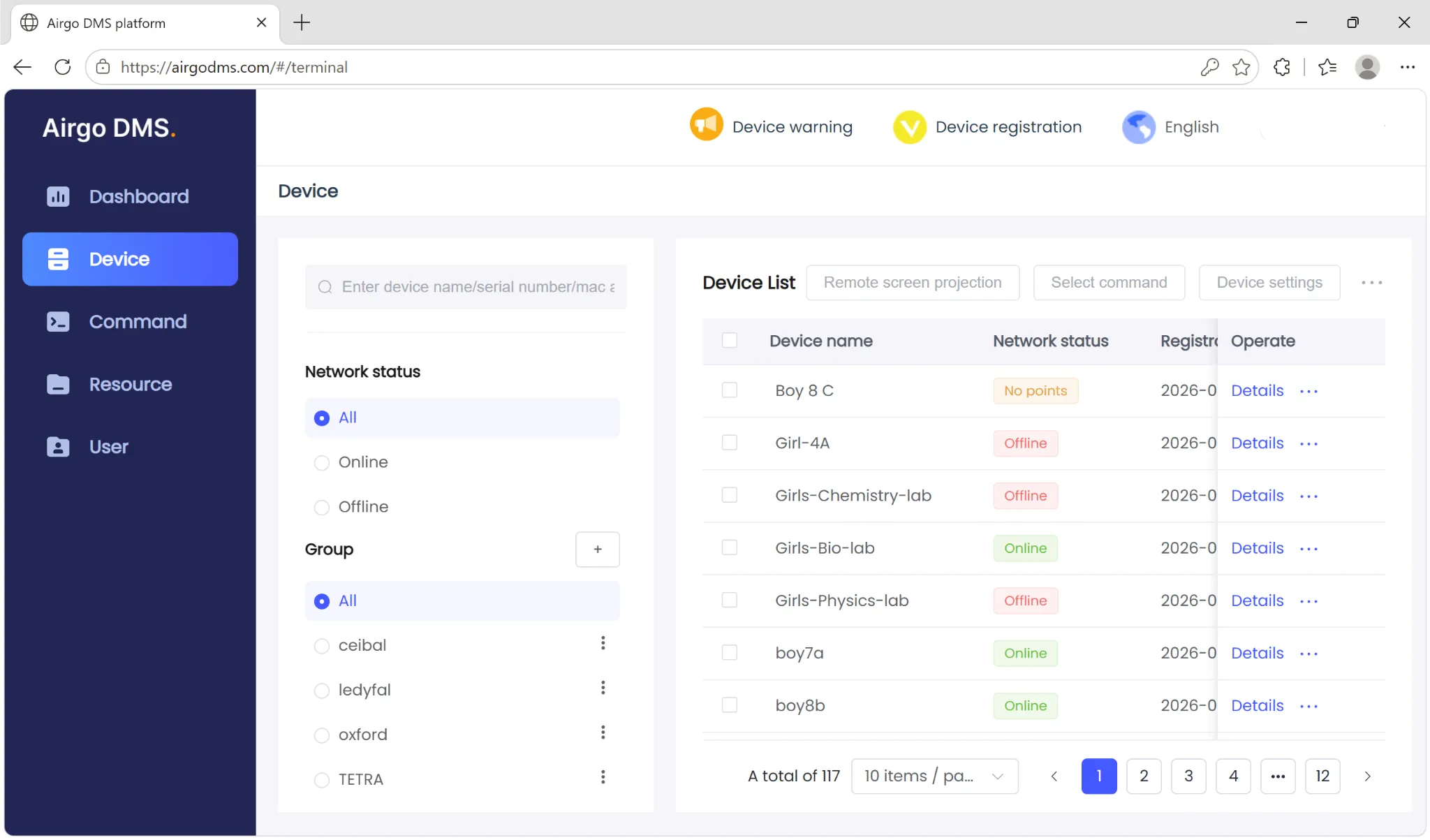
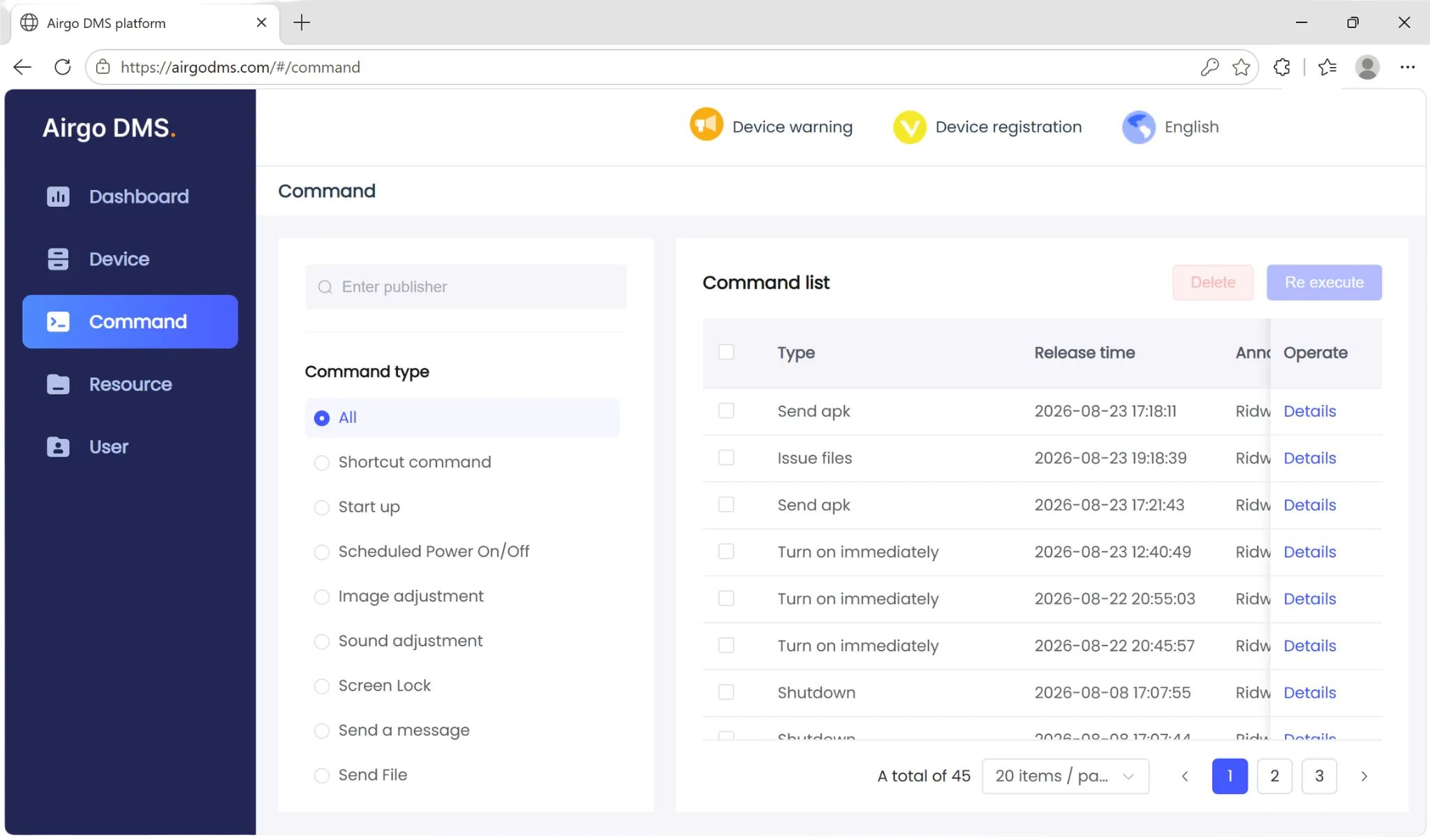
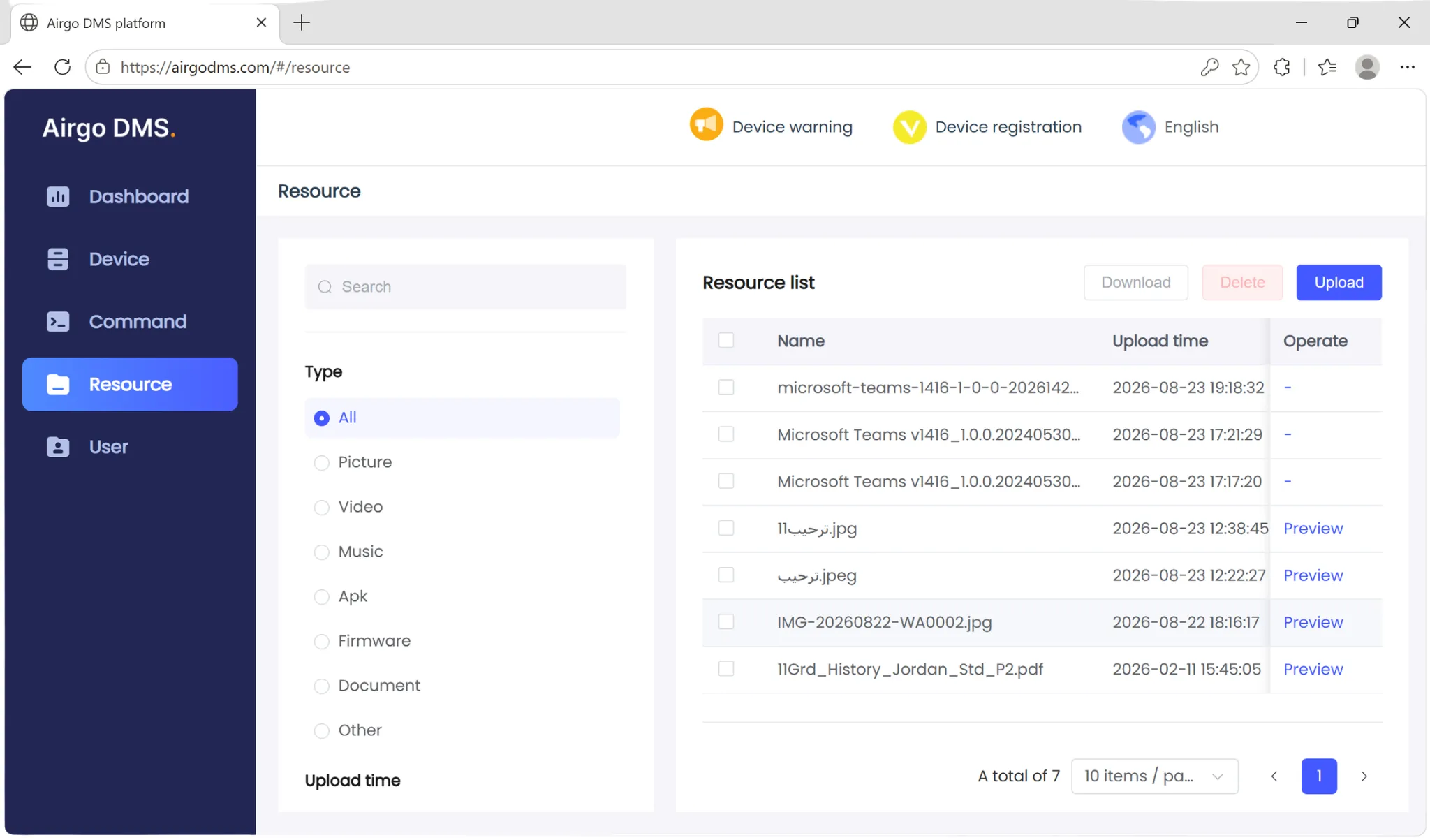
DMS system
Save Time Across Sites
Manage registered MeetBoards from one platform, reducing manual checks and unnecessary on-site visits.
Identify Issues Earlier
Monitor device status remotely, so offline devices and potential problems can be handled before they disrupt work.
Reduce Daily Admin Work
Send commands, adjust settings, and schedule power operations remotely for simpler routine management.
Deploy Content Efficiently
Distribute apps, files, and updates to selected devices or groups, keeping every location consistent.
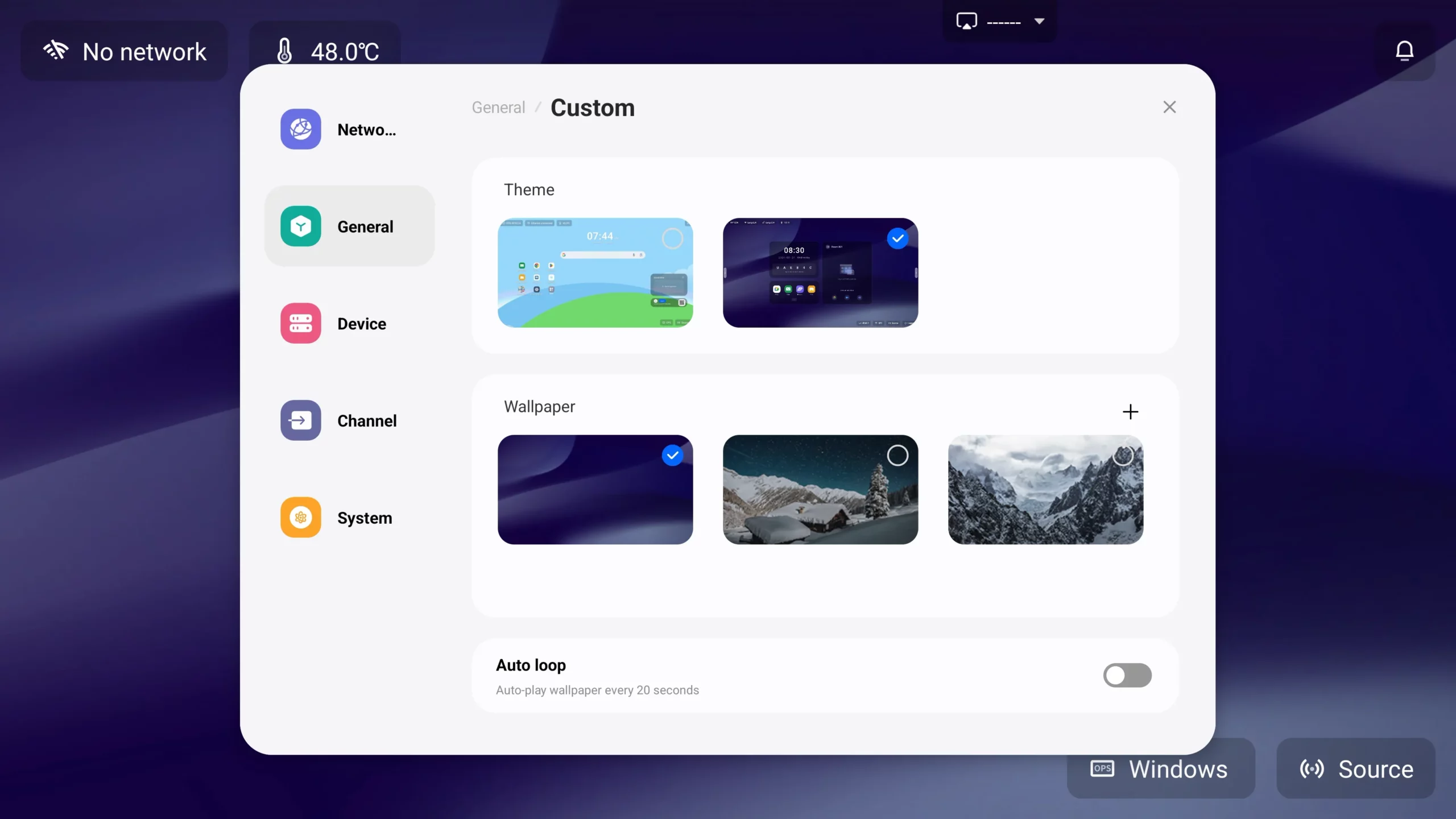
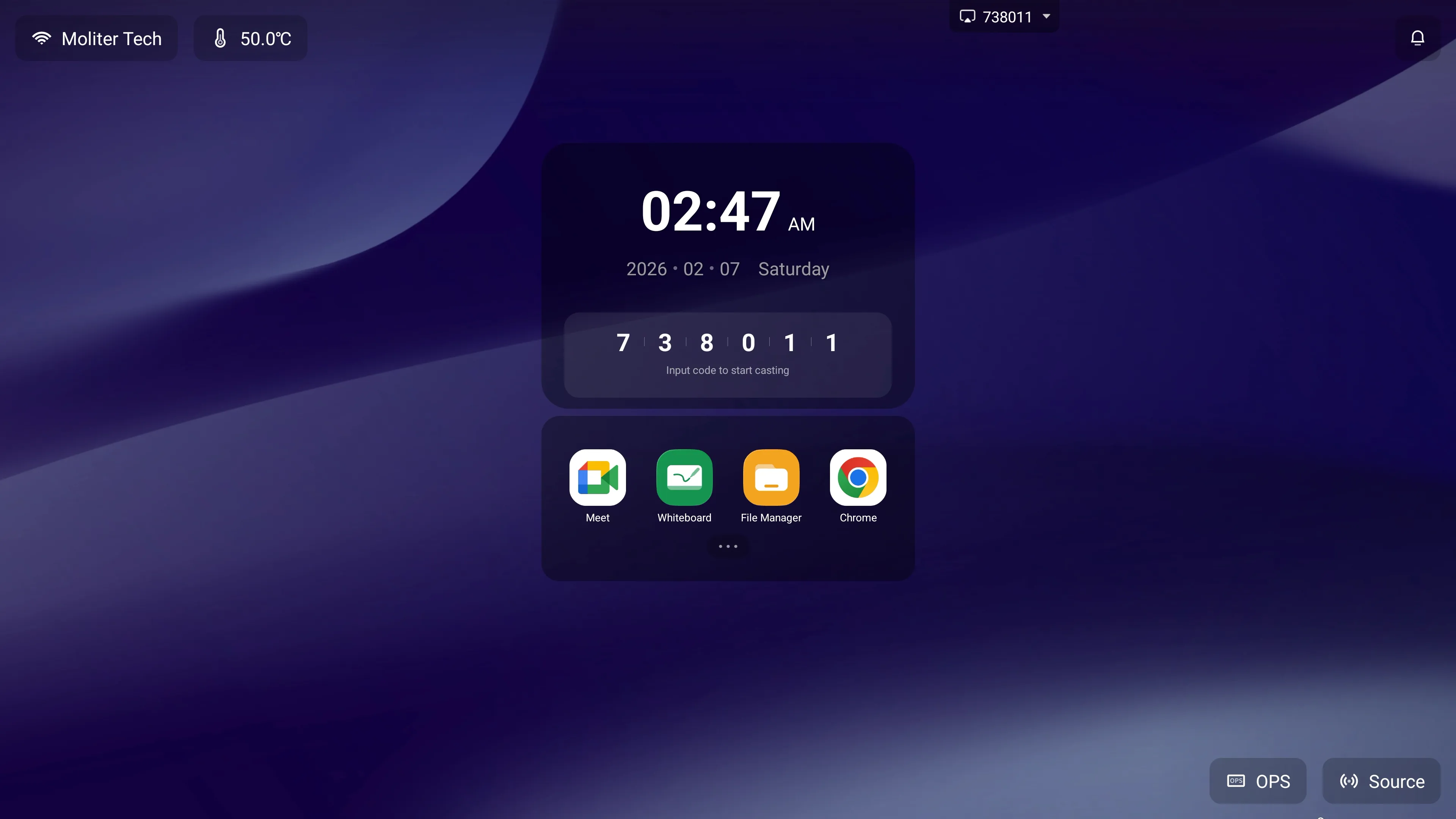

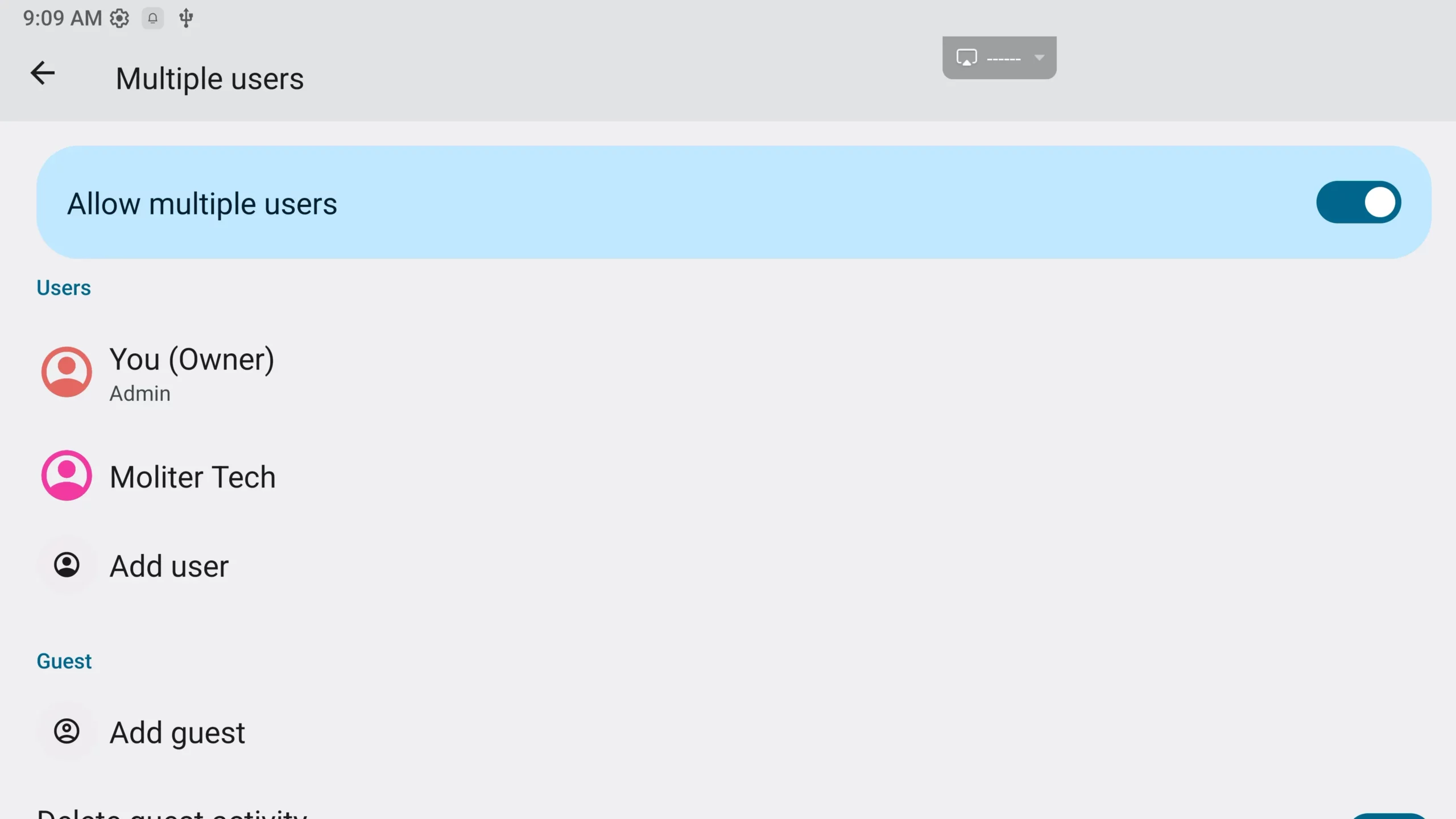
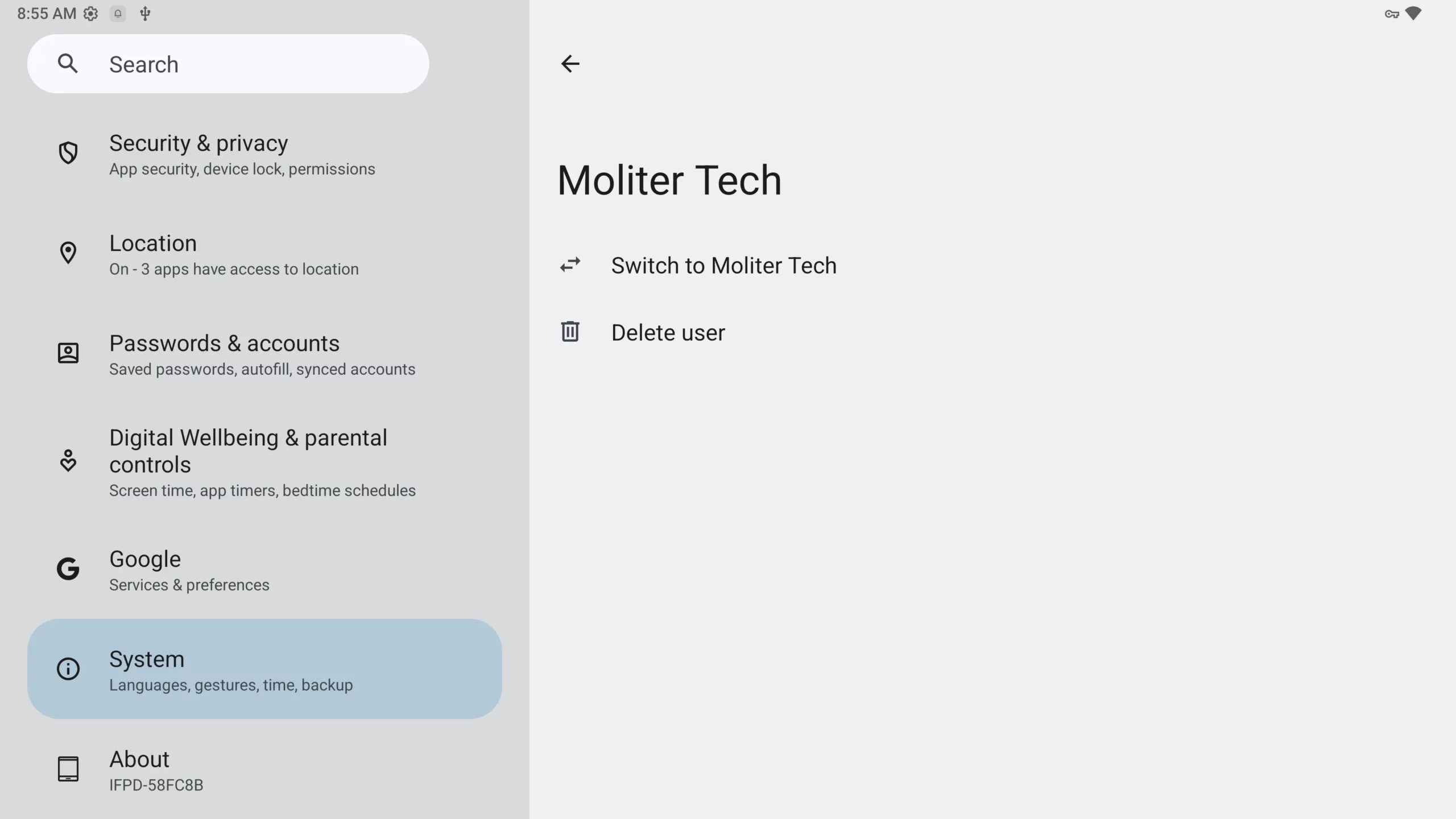
Personalized Workspace
A Home Screen That Fits the Task
Choose a focused Meeting Theme for faster meeting start-up, or a Flexible Theme with shortcuts, bookmarks, and cloud-drive access for daily work.
Everything Within Reach
Keep frequently used apps, files, and online resources on the home screen, reducing the time spent searching or reconnecting during meetings.
One Display, Multiple Workspaces
Create separate user profiles for different teams or individuals, so each user can keep their own apps, settings, and preferences without affecting others.
Simple, Controlled Sharing
The owner can create and manage user accounts, making one MeetBoard easier to share across departments, meeting rooms, or flexible workspaces.
Google Ready, Better Control
Work with Familiar Google Tools
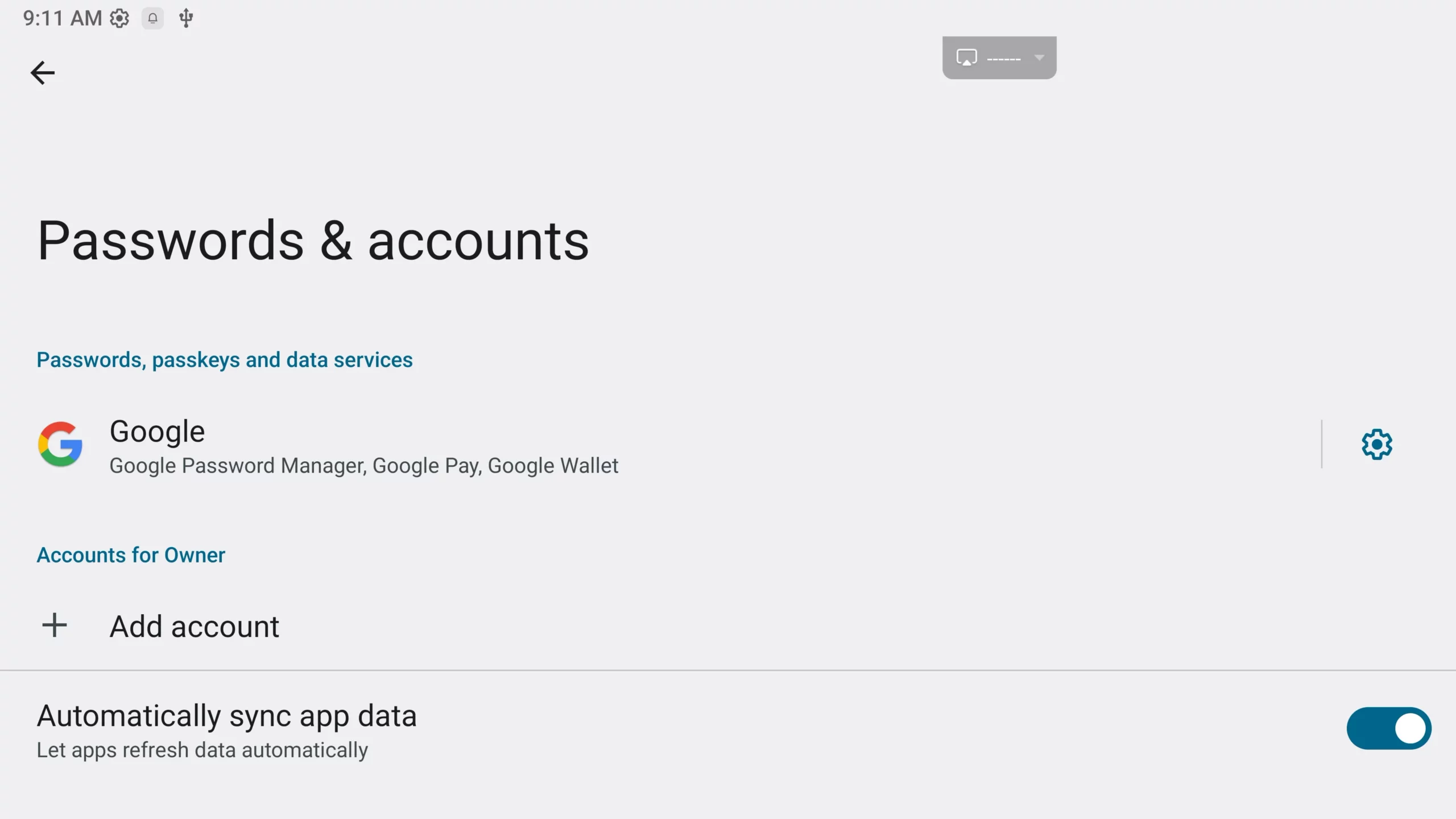
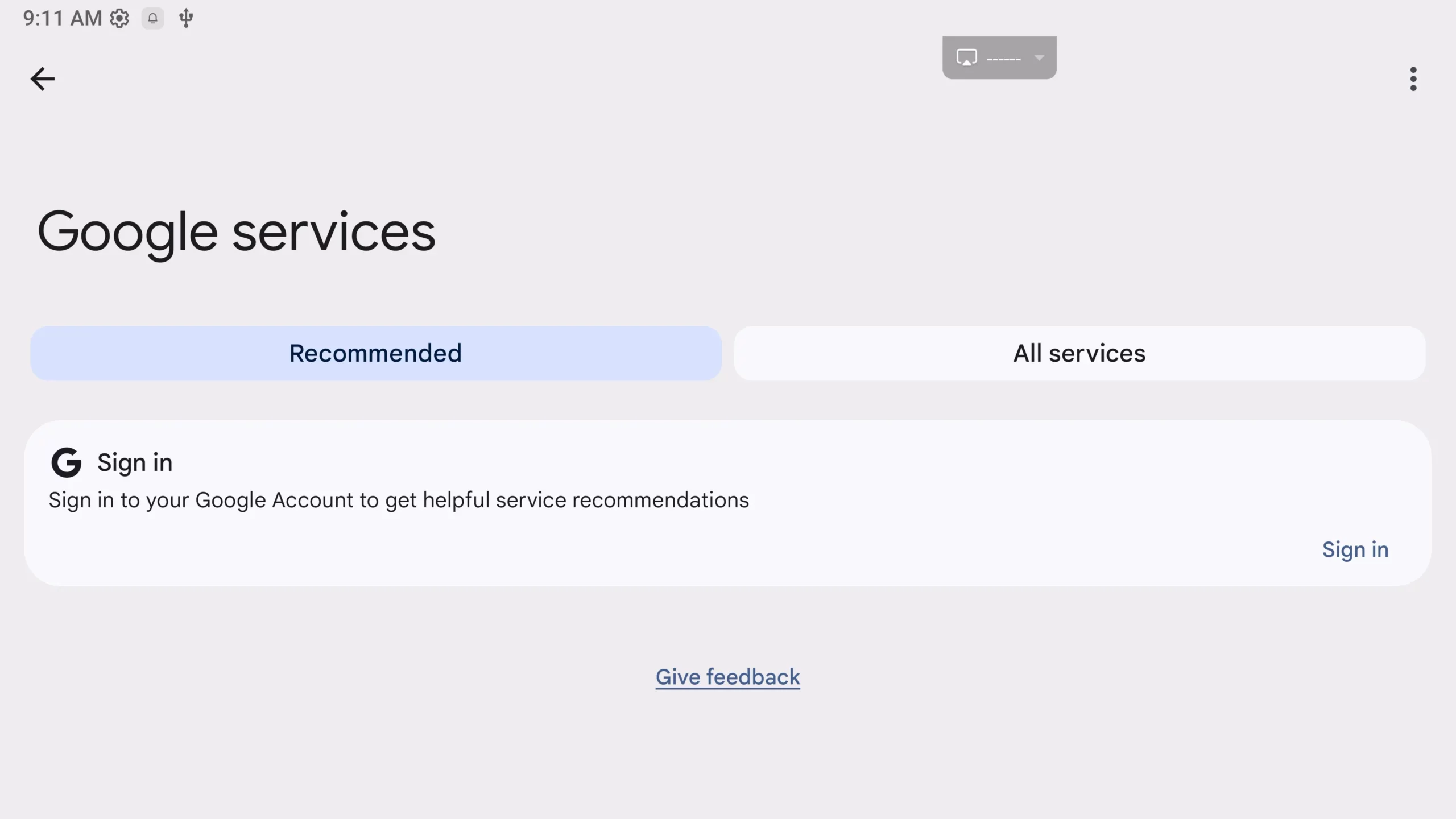
Let teams sign in with their Google accounts and access Google services and approved apps directly on MeetBoard, reducing the learning curve and making daily collaboration more seamless.
Keep Shared Screens Focused
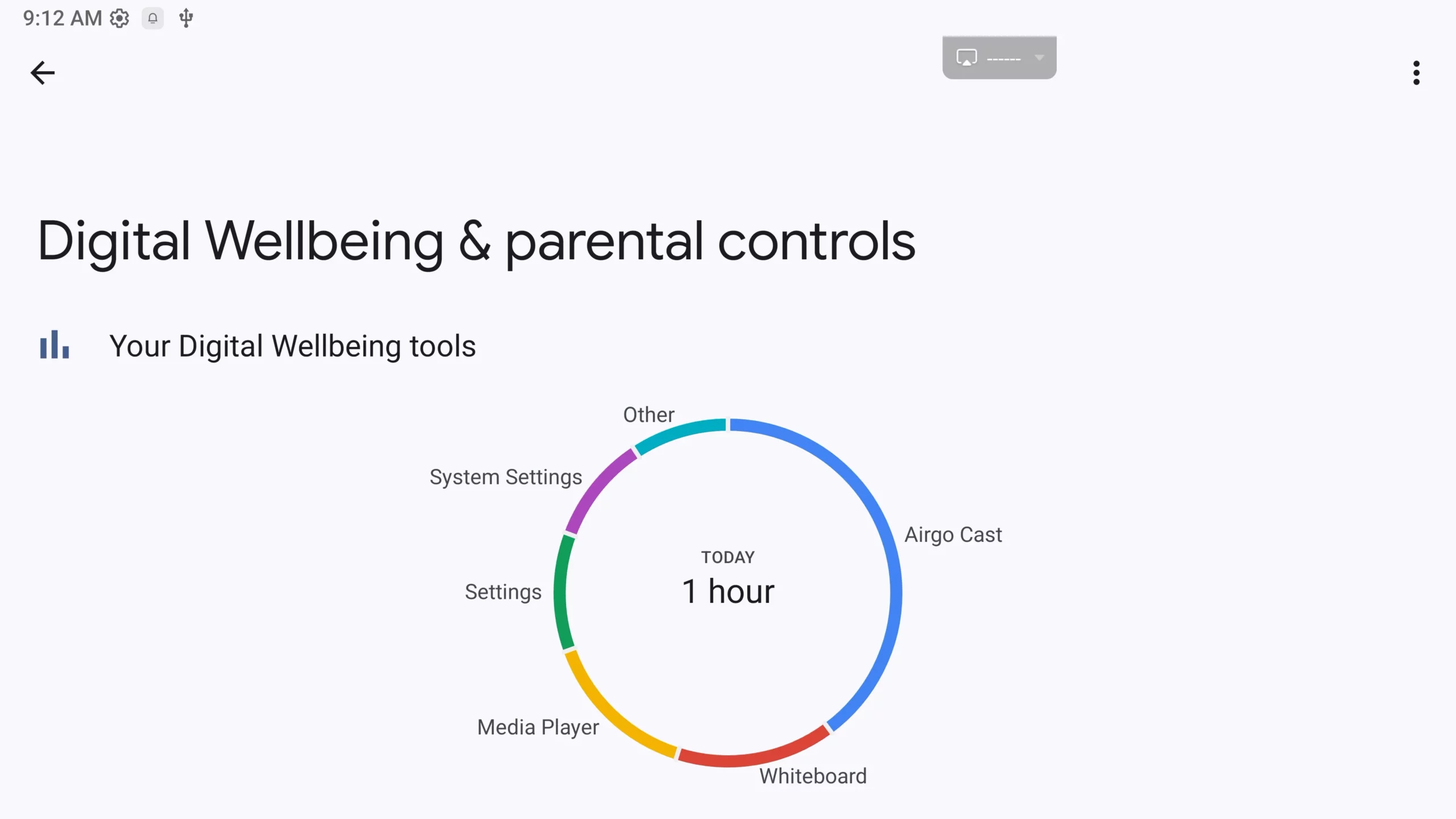
Use Digital Wellbeing and parental controls to manage app access, screen time, and usage limits—helping administrators keep shared devices suitable for meetings and work.
Protect a Shared Work Environment
Give organizations more control over how the display is used, so meeting rooms remain productive instead of becoming an unmanaged public screen.
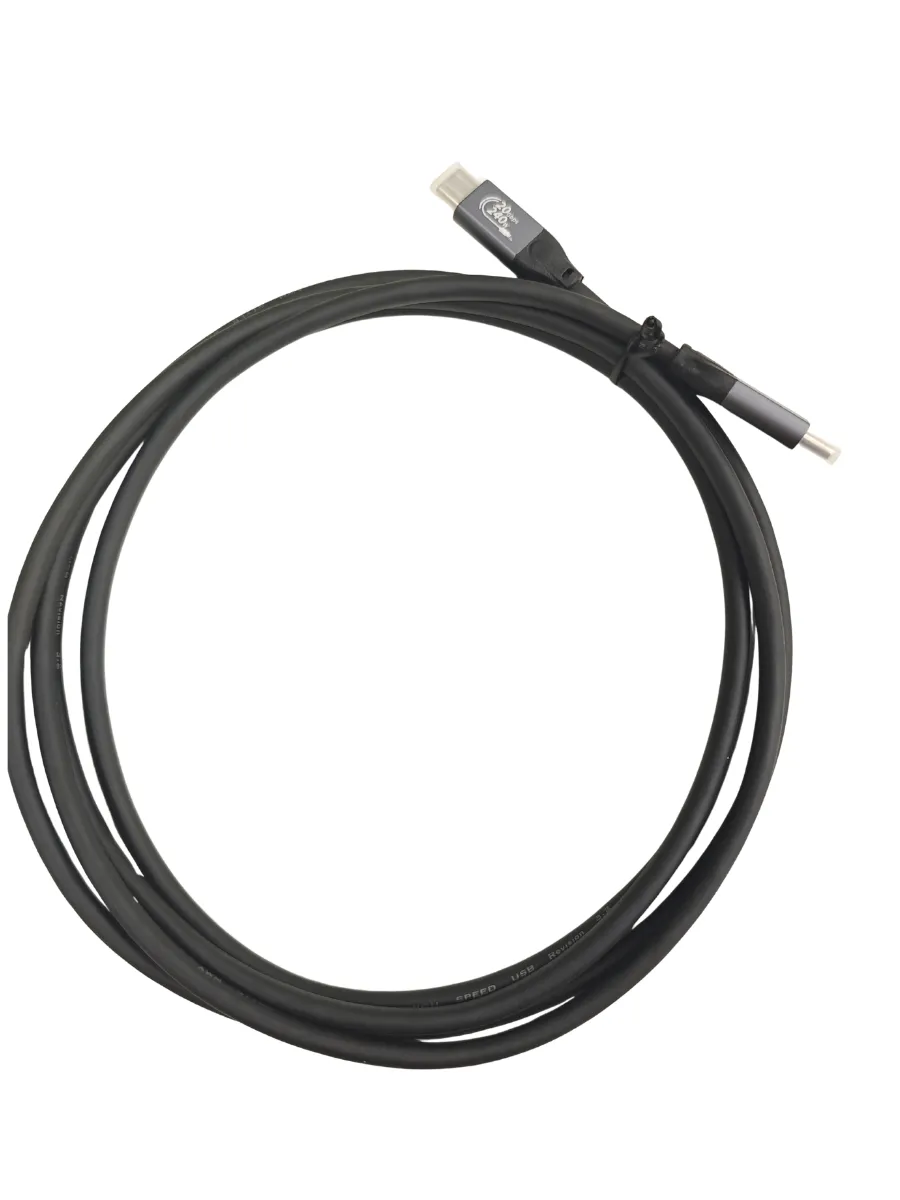
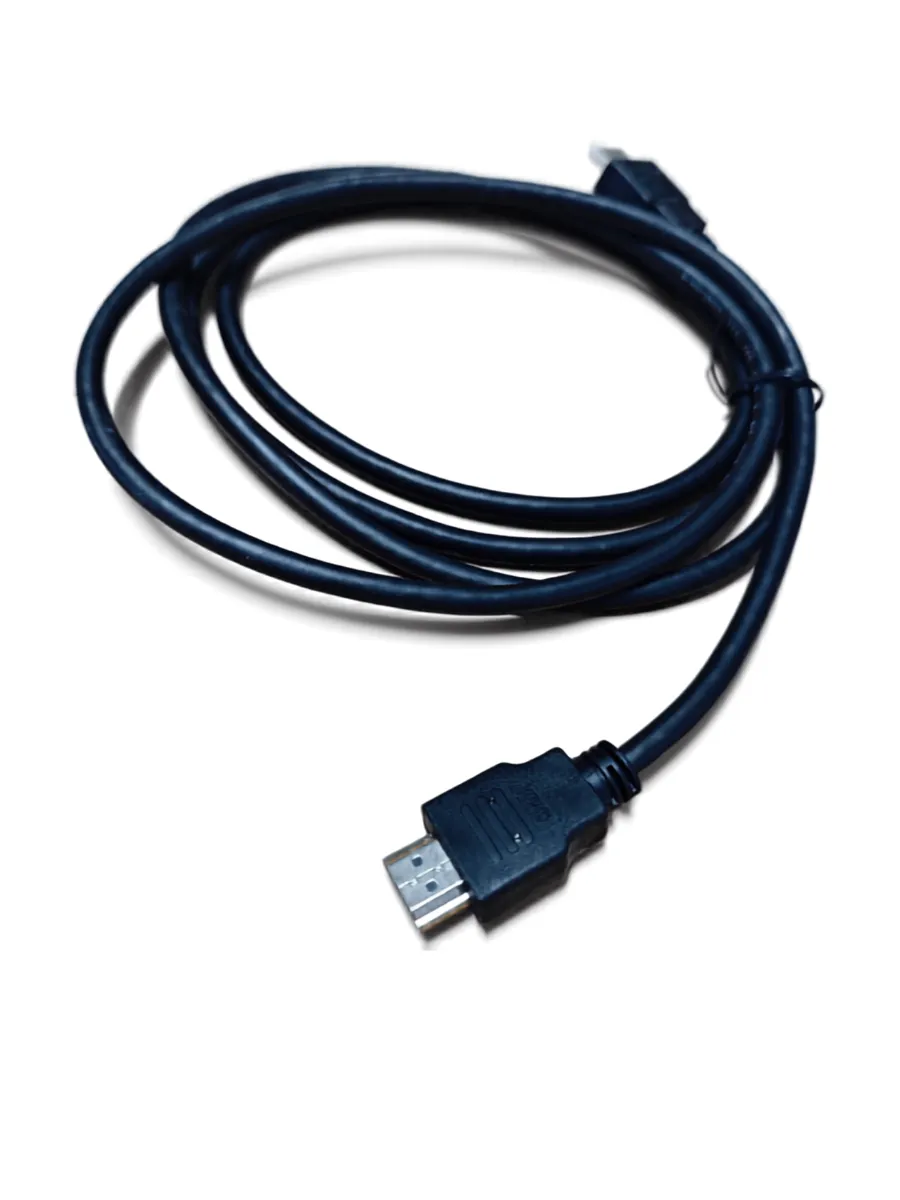
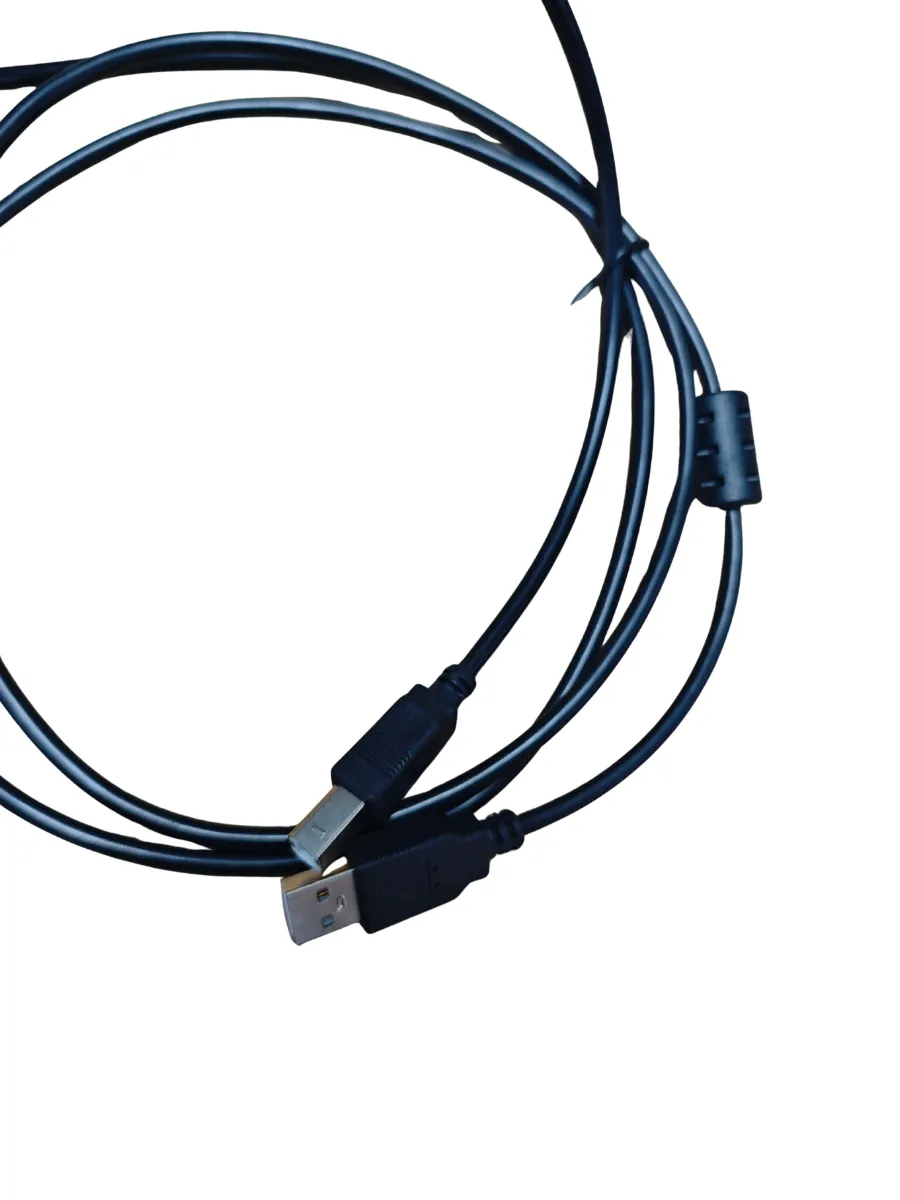
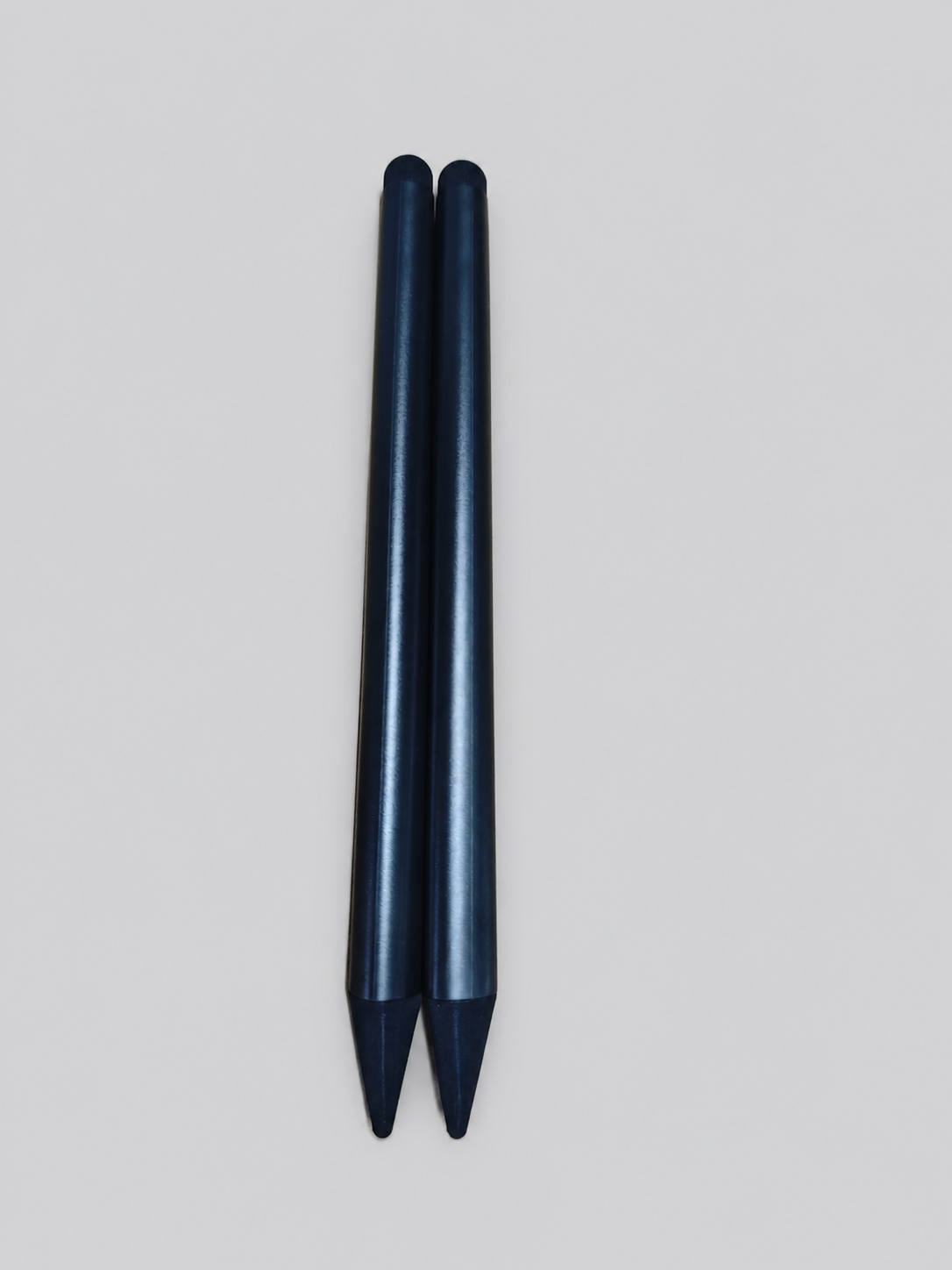
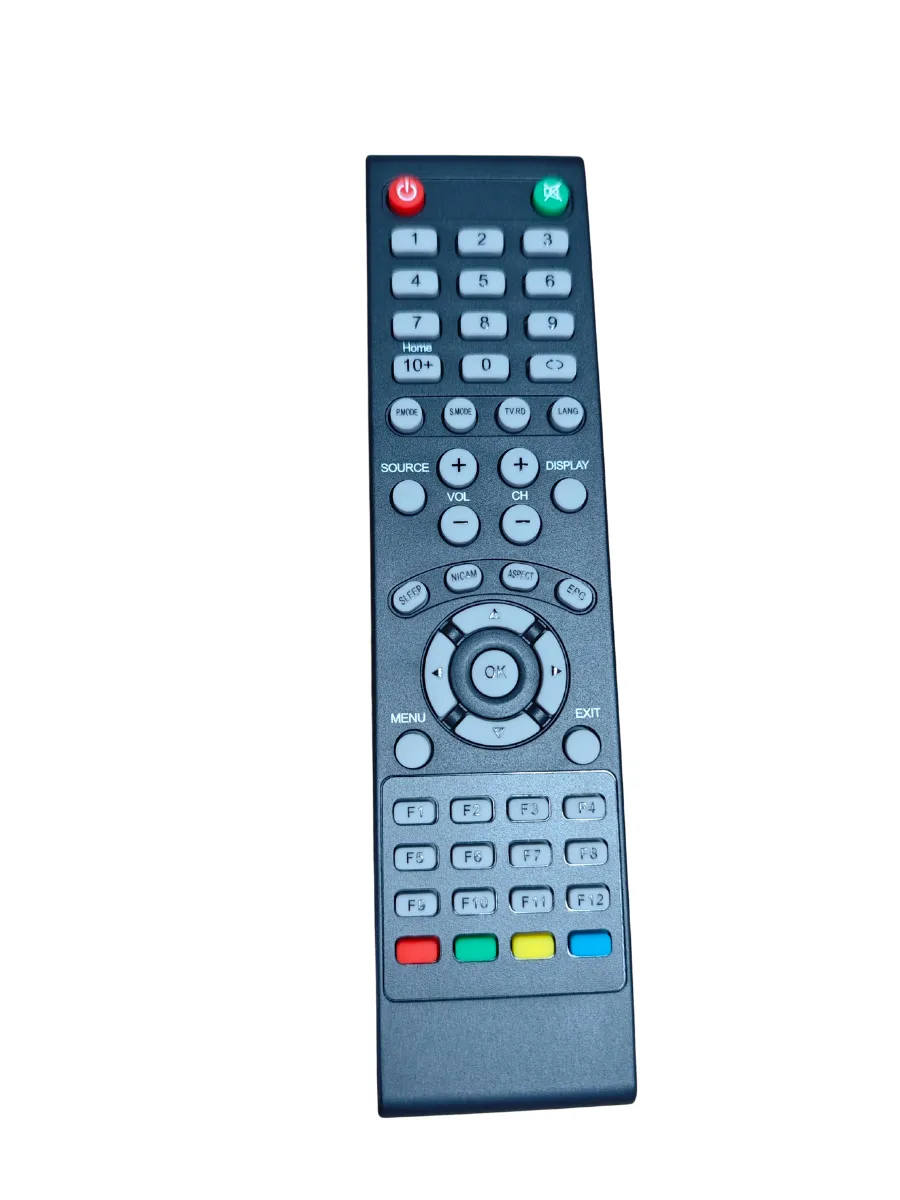
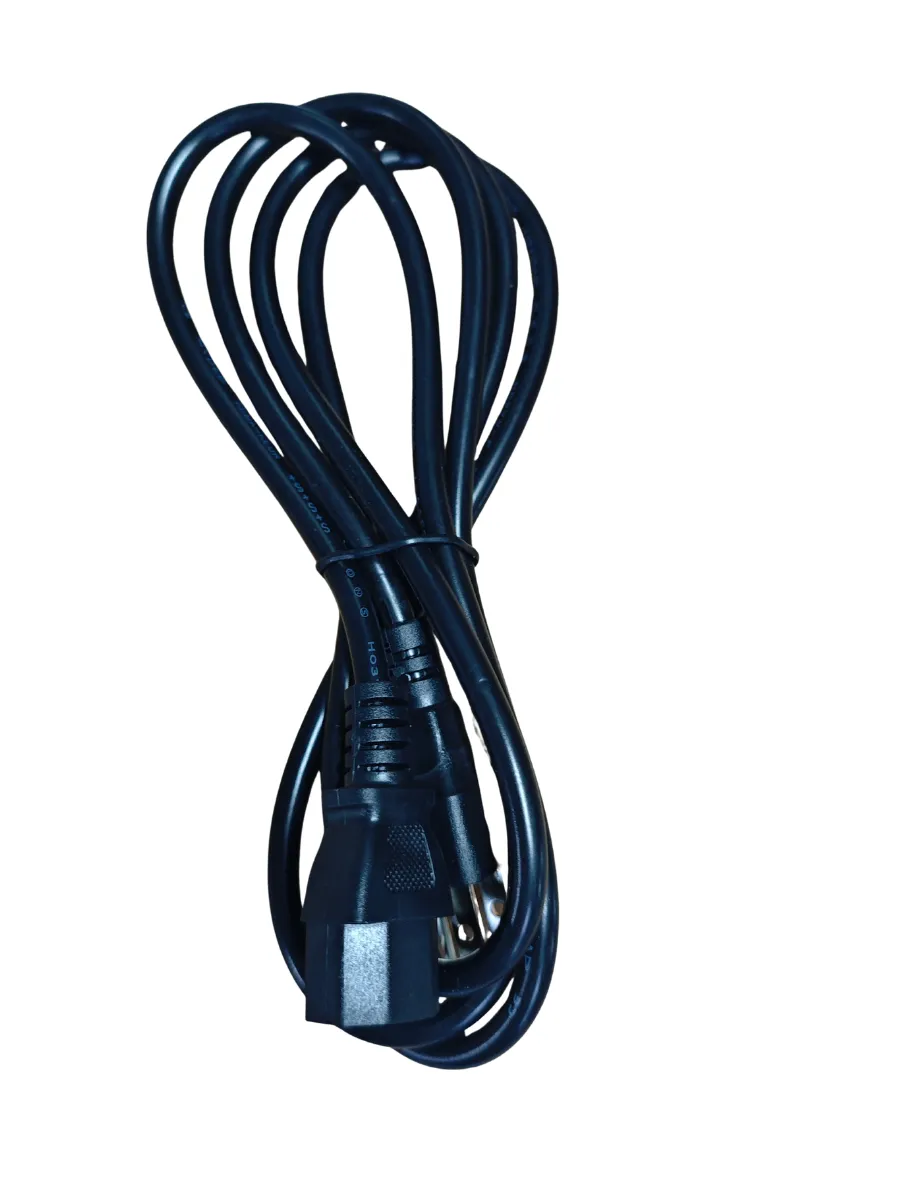
Accessories
Connectivity shouldn’t require crawling behind the panel. This model puts three front-facing USB ports — one more than most comparable panels on the market — right where presenters and students actually need them, for instant flash-drive access, quick device charging, or plug-and-play peripherals without interrupting a session. Combined with a full rear I/O set (HDMI in/out, VGA, Type-C, LAN, audio out), it gives integrators a panel that’s as easy to install as it is to use day-to-day — fewer support calls, faster classroom or boardroom turnaround between users.
Fast, Connected Meetings
Start Meetings in Seconds
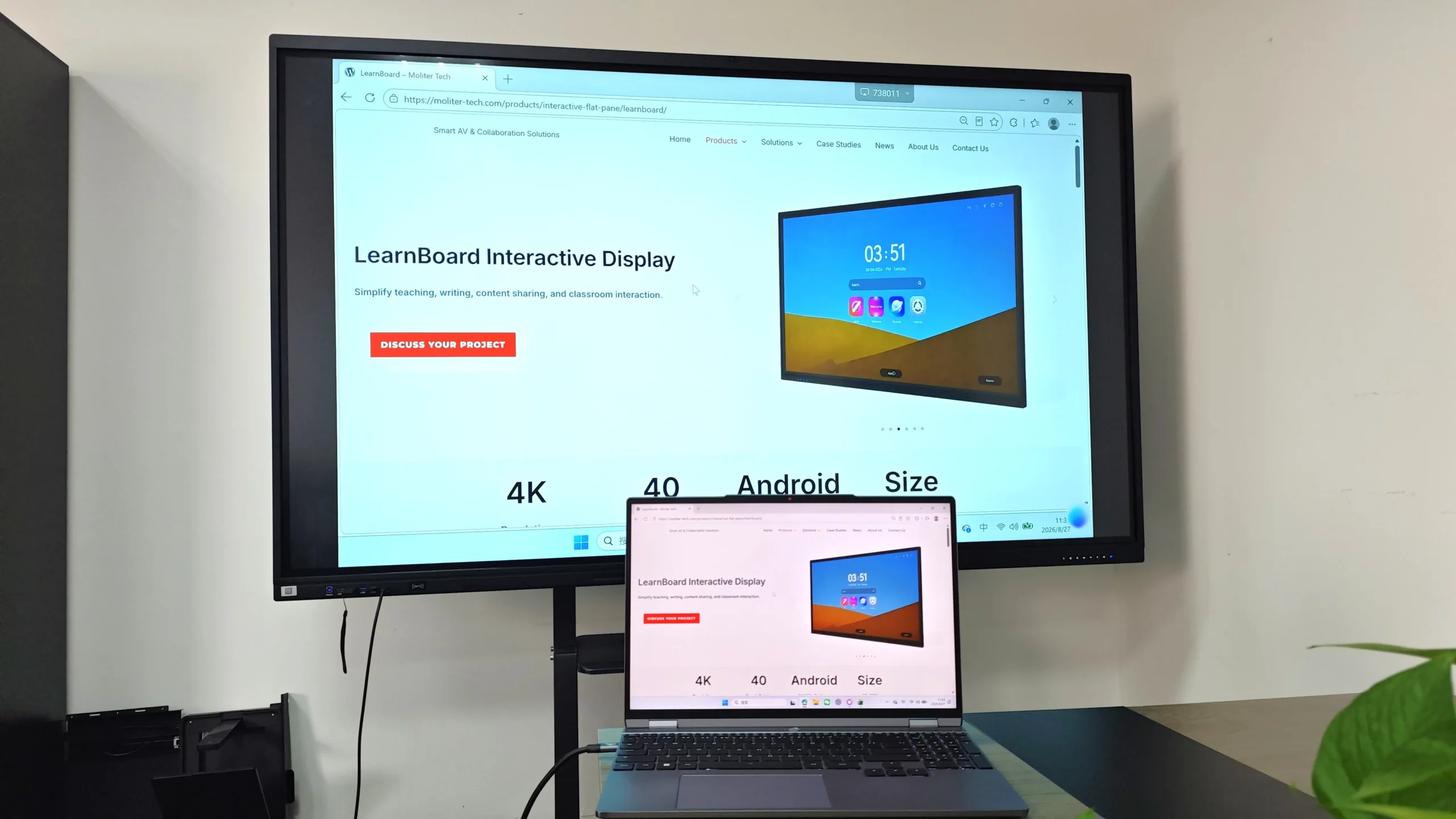
Connect a laptop or mobile device through the front full-function Type-C port and share the screen instantly—no app, driver, setup, or previous connection required. This helps guests start faster while keeping their own device and account information private.
Connect Any Meeting Device
Front and side ports make it easy to connect laptops, HDMI sources, USB devices, and meeting peripherals, so teams can work with the equipment already in the room instead of wasting time looking for adapters.
Keep Remote Teams Engaged
The AI camera automatically follows the active speaker, helping remote participants clearly see who is presenting and making hybrid meetings feel more natural and focused.
Built for Modern Meeting Rooms
Bring familiar Google services, quick pen access, voice-assisted control, and essential compliance support into one interactive display for everyday collaboration.
EDLA
Access Google services and approved apps directly on MeetBoard, giving teams a familiar workspace for meetings and daily collaboration.
CE FCC
CE and FCC compliance helps MeetBoard meet common regulatory requirements for international meeting-room projects.
Lift detection
Pick up the pen to automatically open the assigned whiteboard or annotation tool, so teams can start writing without searching through menus.
AI-Powered
Press the paired remote to use voice-assisted controls without a wake word, helping presenters operate the display with fewer on-screen steps.
FAQ
How can we confirm which existing cameras, microphones and meeting computers can be reused with MeetBoard?
MeetBoard provides public USB ports that can be used by both Android and Windows. Existing cameras, microphones and other supported USB peripherals can be connected directly, subject to a compatibility check for the exact devices.
Can MeetBoard use one cable for video, touch control, camera and microphone access?
Yes. A compatible full-featured USB-C connection can carry video and touch data and provide access to the supported camera and microphone functions through one cable.
If MeetBoard can run Teams or Zoom, does that mean it can be delivered as a certified meeting-room system?
No. Running a meeting application is different from having the complete room system certified. A tender should distinguish between meetings hosted on the customer's computer, a standard meeting PC and a specified certified room system. If certification is required, the exact combination of display, computer, peripherals and software must be verified.
How can guests connect to MeetBoard if they cannot install software or join the customer's corporate network?
MeetBoard includes a full-featured USB-C cable. If the guest's computer supports display output through USB-C, it can connect directly to MeetBoard without installing additional software.
For a long conference table, what area can MeetBoard's built-in camera and audio system cover, and when are external devices needed?
The built-in audio and video system is designed to cover seats within approximately 10 metres. If the project requires higher audio or video quality, dedicated external devices can be added after reviewing the room layout and acceptance requirements.
Which accessories, licences and installation services are often omitted from a complete MeetBoard quotation?
Separate the quotation into the display, computing device, audio and video peripherals, signal switching, table cabling, installation and software services. Check extension cables, adapters, camera brackets and account licences, and confirm who is responsible for installation and commissioning. This makes quotations comparable against the same complete meeting workflow.
Other Products
LearnBoard
For a fixed communication point in retail, entrance and shared indoor spaces without wall mounting.
FlexBoard
For entrance areas where offers, menus and notices need to be changed more often than printed posters allow.
Indoor Digital Signage
For a permanent information point where the screen should remain on a wall and the floor must stay clear.